メモ
- この機能は現在 パブリック プレビュー であり、変更される可能性があります。
- ユーザー レベルの基本設定は、現在、 Copilot Pro、 Copilot Pro+、または Copilot Max(コパイロット・マックス) プランのユーザーのみが使用できます。
Copilot メモリ を使用すると、Copilot がコードベースや個人の好みを学習し、Copilot クラウドエージェント、Copilotコード レビュー、Copilot CLI (コパイロット CLI) がより効果的に作業できるようになります。
詳しくは、「GitHub Copilot Memory について」をご覧ください。
Copilot メモリ の有効化
個々の有料 Copilot サブスクリプションを持つユーザーの場合、 Copilot メモリ は既定で有効になっています。 これらのユーザーは、個人用の Copilot 設定で設定を管理できます。
エンタープライズおよび組織が管理する Copilot サブスクリプションの場合、 Copilot メモリ は既定でオフになっており、エンタープライズまたは組織の設定で有効にする必要があります。
組織から Copilot を受け取るユーザーは、組織またはエンタープライズ設定で Copilot メモリ を有効にする必要があります。
メモ
ユーザーに複数の組織によって Copilot サブスクリプションが割り当てられている場合、最も制限の厳しい設定が適用されます。つまり、すべての組織がこの機能を有効にしていない限り、 Copilot メモリ は使用されません。
企業の Copilot メモリ を有効にする
エンタープライズ所有者は、企業全体の有効化ポリシーを定義することも、個々の組織の所有者に決定を委任することもできます。
-
企業ページに移動してください。 たとえば、GitHub.com の [Enterprise] ページから。
-
ページの上部にある AI コントロールをクリックします。
-
サイドバーで、[ Copilot] をクリックします。
-
[機能] で、 Copilot メモリ 設定まで下にスクロールし、ドロップダウンからポリシーを選択します。
- 組織に決定させることでCopilot メモリを有効にするかどうかの決定を、組織の所有者に委ねます。
- あらゆる場所で有効にすると、Copilot メモリ ライセンスを持つこの企業の組織のすべてのメンバーに対してCopilotが可能になります。
- すべての場所で無効 にすると、 Copilot メモリ が無効になり、この企業の組織で有効にされなくなります。
組織の Copilot メモリ を有効にする
組織の所有者は、Copilot メモリ ライセンスを持つ組織のすべてのメンバーのCopilotを有効または無効にすることができます。
組織が企業に属している場合、組織の所有者が Copilot メモリ を有効または無効にする機能は、エンタープライズ レベルのポリシーによって制御される場合があります。
-
GitHub の右上隅にあるプロフィール画像をクリックしてから、[ Your organizations] をクリックします。
-
組織をクリックして選択します。
-
Organization 名の下で、[ Settings] をクリックします。 [設定] タブが表示されない場合は、 [] ドロップダウン メニューを選び、 [設定] をクリックします。
![組織のプロファイルのタブのスクリーンショット。 [設定] タブが濃いオレンジ色の枠線で囲まれています。](/assets/cb-49309/images/help/discussions/org-settings-global-nav-update.png)
-
サイドバーの[コード、計画、自動化]で、[ Copilot]、[ ポリシー]の順にクリックします。
-
[機能] で、 Copilot メモリ の設定まで下にスクロールします。
-
ドロップダウン ボタンをクリックし、[ 有効] を選択します。
![組織のプロファイルのタブのスクリーンショット。 [設定] タブが濃いオレンジ色の枠線で囲まれています。](/assets/cb-49309/mw-1440/images/help/discussions/org-settings-global-nav-update.webp)
Copilot メモリ は、 Copilot ライセンスを持つ組織のすべてのメンバーに対して有効です。
個々のユーザーの Copilot メモリ の管理
個々の有料 Copilot サブスクリプションがある場合、 Copilot メモリ は既定で有効になっています。
プランに関係なく、Copilotの個人用GitHub設定でいつでも無効にしたり、再び有効にしたりできます。
有効にすると、 Copilot メモリ は、 Copilot クラウドエージェント、 Copilotコード レビュー、または Copilot CLI (コパイロット CLI)を使用するすべてのリポジトリで使用されます。
- GitHub の任意のページで、右上隅にある自分のプロフィール画像をクリックしてから、[ Copilot settings] をクリックします。
- [機能] で、 Copilot メモリ の設定まで下にスクロールします。
- ドロップダウン ボタンをクリックし、[ 有効] または [無効] を選択します。
リポジトリ レベルのファクトとユーザー レベルの基本設定の表示と削除
Copilot メモリが使用されているリポジトリの所有者は、現在保存されているリポジトリ レベルのファクトを確認できます。 不適切、誤解を招く、または正しくないと思う場合は、削除できます。
Copilotのリポジトリ レベルのファクトの表示
-
GitHub で、リポジトリのメイン ページに移動します。
-
リポジトリ名の下にある [Settings] をクリックします。 [設定] タブが表示されない場合は、 [] ドロップダウン メニューを選び、 [設定] をクリックします。
![タブを示すリポジトリ ヘッダーのスクリーンショット。 [設定] タブが濃いオレンジ色の枠線で強調表示されています。](/assets/cb-28260/images/help/repository/repo-actions-settings.png)
-
サイドバーの「コード&オートメーション」セクションで、「 Copilot してから メモリ」をクリックします。
このリポジトリに現在格納されているリポジトリ レベルのファクトの一覧が表示されます。
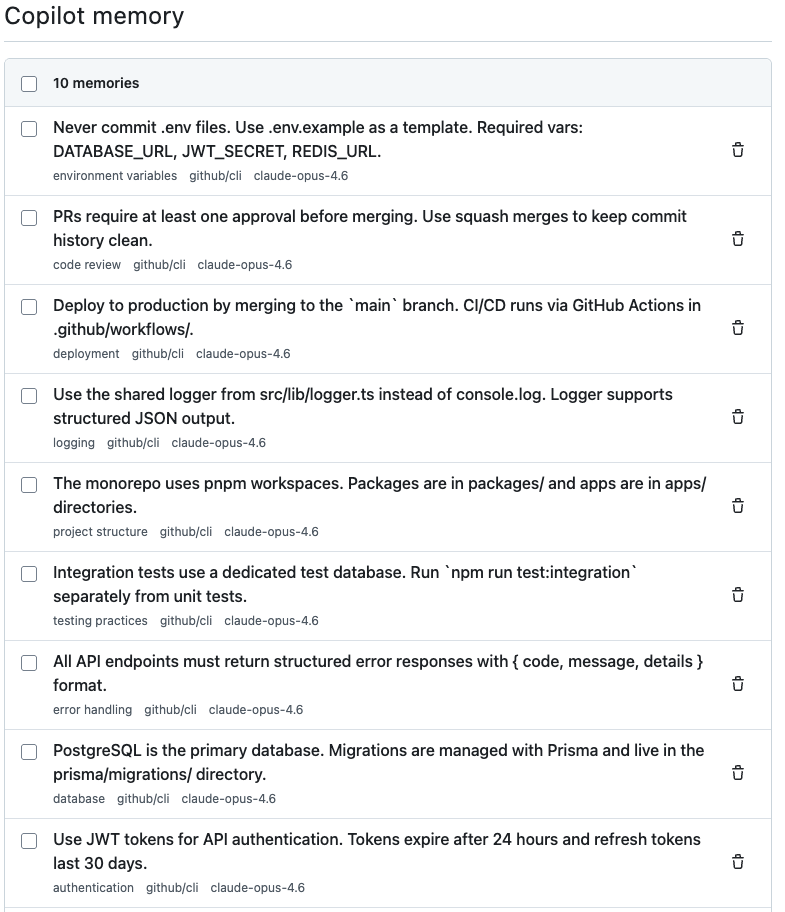
![タブを示すリポジトリ ヘッダーのスクリーンショット。 [設定] タブが濃いオレンジ色の枠線で強調表示されています。](/assets/cb-28260/mw-1440/images/help/repository/repo-actions-settings.webp)

Copilotのユーザー レベルの基本設定の表示
-
GitHub の任意のページで、右上隅にある自分のプロフィール画像をクリックしてから、[ Copilot settings] をクリックします。
-
Copilotで、[メモリ] をクリックします。
保存されているユーザー レベルの基本設定の一覧が表示されます。
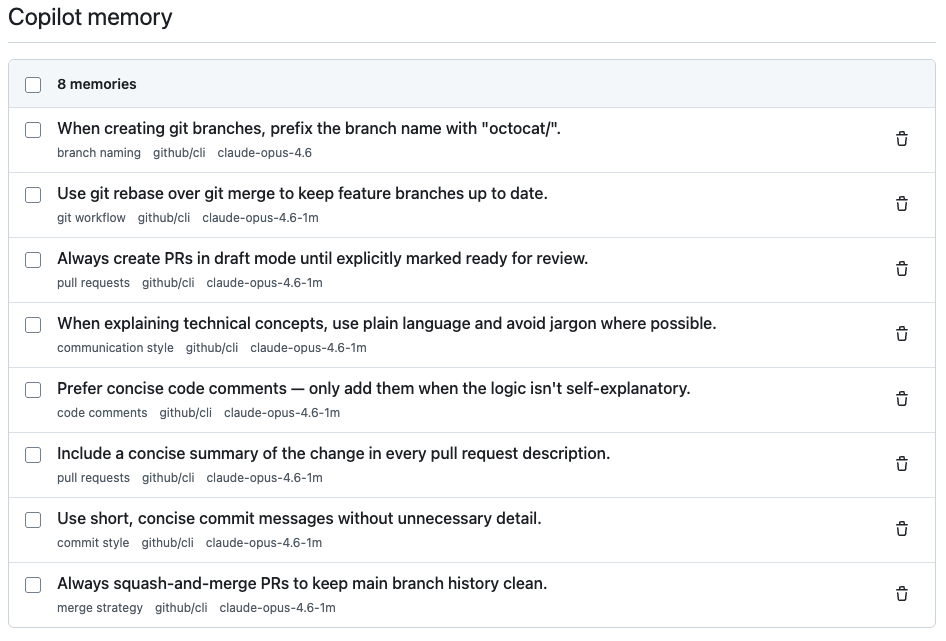

リポジトリレベルのファクトまたはユーザーレベルの設定の削除
リポジトリ レベルのファクトまたはユーザー レベルの基本設定は、いつでも削除できます。 Copilotでは、ファクトと基本設定を使用する前に既に検証されているため、エントリは、生成されたコードがコードベースにまだ存在する場合にのみ適用されることに注意してください。
-
リポジトリ レベルのファクトまたはユーザー レベルの基本設定を表示します。
-
削除するファクトまたは基本設定の右側にあるごみ箱アイコンをクリックします。
または、チェックボックスを使用して複数のエントリを選択し、[削除] をクリック します。
メモ
リポジトリ レベルのファクトとユーザー レベルの基本設定は、古い情報が Copilotの決定に影響を与えるのを防ぐために、28 日後に自動的に削除されます。