Введение
GitHub Code Quality (Публичный предварительный просмотр) помогает поддерживать ваш код надёжным и поддерживаемым, показывая данные о качестве кода в pull requests и на вашем стандартном ветке.
В этом руководстве вы узнаете, как определить и исправить обнаружение качества кода в ветви по умолчанию, что поможет улучшить работоспособность кода репозитория.
Предпосылки
- GitHub Code Quality должно быть включено в вашем репозитории, и код должен быть на поддерживаемом языке. См . раздел AUTOTITLE.
- Если вы включаете GitHub Code Quality его впервые, убедитесь, что вы подождали несколько минут после включения, чтобы полностью CodeQL сканировать стандартную ветку.
Просмотр результатов сканирования для ветви по умолчанию
В вашем репозитории перейдите на Security and quality вкладку, кликните Качество кода в левой боковой панели, затем открыть Стандартные выводы дашборд репозитория.
Здесь вы увидите:
-
Оценки надежности и удобства обслуживания базы кода, которые помогают быстро понять работоспособность кода.
-
Список результатов всех проблем с качеством, выявленных CodeQLанализом -powered на вашей стандартной ветке, сгруппированных по правилам и языкам.
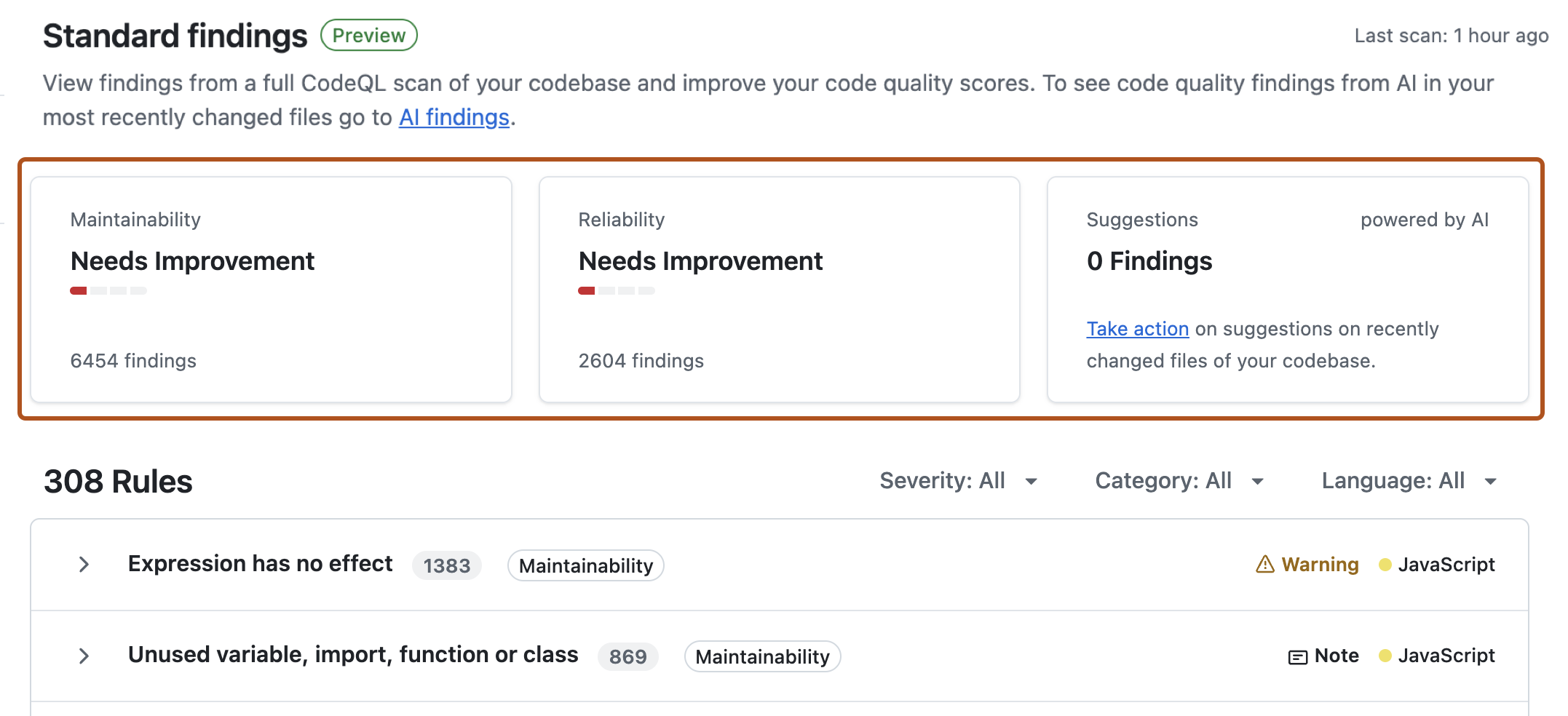

Определите обнаружение, имеющее большое значение
Используйте фильтры панели мониторинга , чтобы определить высокий уровень серьезности («Ошибка» или «Предупреждение»).
Устранение этих проблем окажет наибольшее влияние на рейтинги репозитория.

Изучите детали находки
Щелкните само название правила, чтобы просмотреть подробные сведения о файлах и строках кода, на которые распространяется это правило.

Перейдя в подробное представление, нажмите кнопку Показать больше , чтобы собрать контекст и понять результаты.

Сгенерировать Автофикс второго пилота
Справа от выделенной находки нажмите Generate fix.

Просмотрите предложенное исправление и нажмите Открыть запрос на вытягивание.
Слияние исправления
Внимательно изучите черновик запроса на вытягивание. Если вас устраивают предложенные изменения и все проверки и тесты пройдены, выполните слияние запроса на вытягивание.
Наблюдайте за изменением метрик
Вернёмся на Code Quality панель управления ( Security and quality вкладка, Качество кода затем , затем Стандартные выводы).
Подождите несколько минут, пока следующее сканирование завершится — Code Quality сканы автоматически повторяются после каждого перехода на стандартную ветку.
Следите за изменением метрик в верхней части панели мониторинга:
-
Количество выводов по «Надежности» или «Ремонтопригодности» должно было уменьшиться.
-
Ваши оценки «Надежность» или «Ремонтопригодность» могли улучшиться, если в исправлении был учтен ряд важных выводов.
Чтобы узнать больше о том, как рассчитываются рейтинги, см. Справочник по метрикам и рейтингам.
Conclusion
Вы успешно использовали Code Quality и Автофикс второго пилота улучшили здоровье кода вашего репозитория!
Работоспособный код проще для понимания, поддержки и расширения, а устранение проблем с качеством кода делает базу кода более надежной, соответствующей требованиям и ускоряет будущую разработку.
Дальнейшие шаги
- Узнайте, как GitHub Code Quality работают pull requests, чтобы предотвратить попадание проблем с качеством кода на вашу стандартную ветку. См . раздел AUTOTITLE.
- Оставляйте обратную GitHub Code Quality связь в обсуждении сообщества.