Visualizar la gráfica de dependencias
El gráfico de dependencias muestra las dependencias y los dependientes del repositorio. Para cada dependencia, puedes ver la versión, información de licencia, el archivo de manifiesto que la incluyó y si tiene vulnerabilidades conocidas. Para los ecosistemas de paquetes que admiten dependencias transitivas, se mostrará el estado de la relación y puedes hacer clic en "", luego "Mostrar rutas de acceso", para ver la ruta transitiva que trajo a la dependencia.
También puedes buscar una dependencia específica mediante la barra de búsqueda. Las dependencias se ordenan automáticamente con paquetes vulnerables en la parte superior. Para obtener información sobre la detección de dependencias y los ecosistemas compatibles, consulte Ecosistemas de paquetes que soportan el gráfico de dependencias.
-
En GitHub, navegue hasta la página principal del repositorio.
-
Debajo del nombre del repositorio, haz clic en Insights.

-
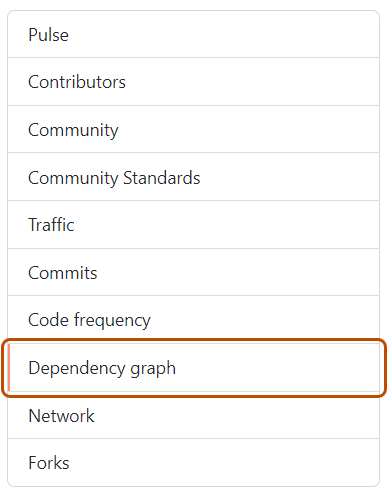
En la barra lateral izquierda, haga clic en Gráfico de dependencias.
-
Opcionalmente, usa la barra de búsqueda para buscar una dependencia específica o un conjunto de dependencias. Puedes usar las palabras clave
ecosystem:para mostrar solo paquetes de un tipo determinado orelationship:para mostrar solo dependencias directas o transitivas (si el ecosistema admite transitividad). Las palabras sin formato de la barra de búsqueda solo coincidirán con los nombres de paquete. -
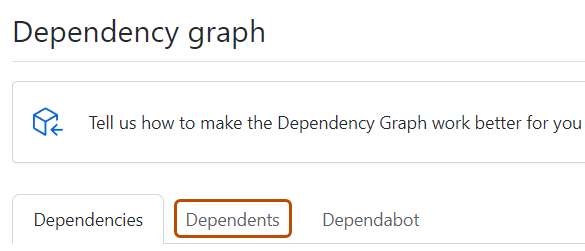
Opcionalmente, para ver los repositorios y paquetes que dependen del repositorio, en "Gráfico de dependencias", haz clic en Dependientes.
Nota:
Actualmente, GitHub solo determina los dependientes de los repositorios públicos.


Vista de dependencias
Para cada dependencia, puedes ver su ecosistema, el archivo de manifiesto en el que se encontró y la licencia (donde se detectó).
-
Las dependencias para los repositorios privados, paquetes privados, o archivos no reconocidos se muestran en texto simple.
-
Si el administrador de paquetes de la dependencia está en un repositorio público, puedes mantener el puntero sobre el nombre de dependencia para mostrar un elemento emergente con la información del repositorio asociado.
-
Puede ordenar y filtrar las dependencias escribiendo filtros como pares
key:valueen la barra de búsqueda.- Use
ecosystem: <ecosystem-name>para mostrar las dependencias del ecosistema seleccionado. - Use
relationship:para filtrar la lista por estado de relación. Los valores posibles sondirect,transitiveyinconclusive. Como alternativa, puede hacer clic en la etiqueta de relación adyacente a un nombre de dependencia para mostrar solo las dependencias del mismo estado de relación. Este filtro solo está disponible para los ecosistemas con compatibilidad con dependencias transitivas. Consulta Ecosistemas de paquetes que soportan el gráfico de dependencias para obtener más información.
- Use
Las dependencias enviadas a un proyecto mediante la API de envío de dependencias mostrarán qué detector se ha usado para su envío y cuándo se han enviado. Para más información sobre el uso de la API de envío de dependencias, consulte Uso de la Dependency submission API.
Si se han detectado vulnerabilidades en el repositorio, estas se muestran en la parte superior de la vista para los usuarios con acceso a Dependabot alerts.
Vista de dependientes
Para los repositorios públicos, la vista de dependientes muestra cómo otros repositorios utilizan este repositorio. Para mostrar únicamente los repositorios que contienen una biblioteca en un administrador de paquetes, haga clic en la opción NUMBER Packages que aparece justo encima de la lista de repositorios dependientes. La cantidad de dependientes es aproximada y podría no siempre empatar con los dependientes listados.
Lectura adicional
- Solución de problemas del gráfico de dependencias
- Sobre el gráfico de dependencias
-
[AUTOTITLE](/code-security/dependabot/dependabot-alerts/viewing-and-updating-dependabot-alerts) - Archivado de la cuenta personal de GitHub y los repositorios públicos