Custom patterns are user-defined patterns that you can use to identify secrets that are not detected by the default patterns supported by secret scanning. For more information, see Defining custom patterns for secret scanning.
At the enterprise level, only the creator of a custom pattern can edit the pattern, and use it in a dry run. There are no similar restrictions for editing custom patterns at repository and organization level.
Editing a custom pattern
When you save a change to a custom pattern, this closes all the alertas de examen de secretos that were created using the previous version of the pattern.
-
Navegar a donde se creó el patrón personalizado. Un patrón personalizado se puede crear en un repositorio, organización o cuenta empresarial.
- Para un repositorio u organización, muestre la configuración "Advanced Security" para el repositorio u organización donde se creó el patrón personalizado. Para más información, consulta Definición de un patrón personalizado para un repositorio o Definición de un patrón personalizado para una organización.
- Para una empresa, en "Directivas" visualice el área "Advanced Security" y, a continuación, haga clic en Características de seguridad. Para más información, consulta Definición de un patrón personalizado para una cuenta de empresa.
-
Under "Custom patterns", to the right of the custom pattern you want to edit, click .
-
When you're ready to test your edited custom pattern, to identify matches without creating alerts, click Save and dry run.
-
When you have reviewed and tested your changes, click Publish changes.
-
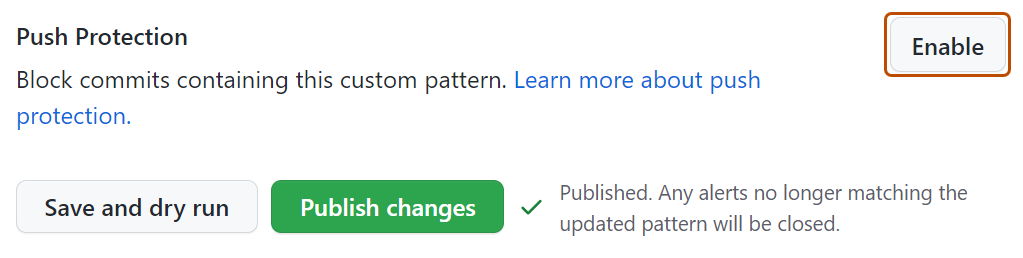
Opcionalmente, para habilitar la protección de inserción para el patrón personalizado, haz clic en Habilitar.
Nota:
- La protección de inserción para patrones personalizados solo se aplicará a los repositorios que tengan secret scanning como protección de inserción habilitada. Para más información sobre cómo habilitar la protección de envío de cambios, consulta Acerca de la protección de inserción.
- La habilitación de la protección de inserción para patrones personalizados que se encuentran habitualmente puede ser perjudicial para los colaboradores.
-
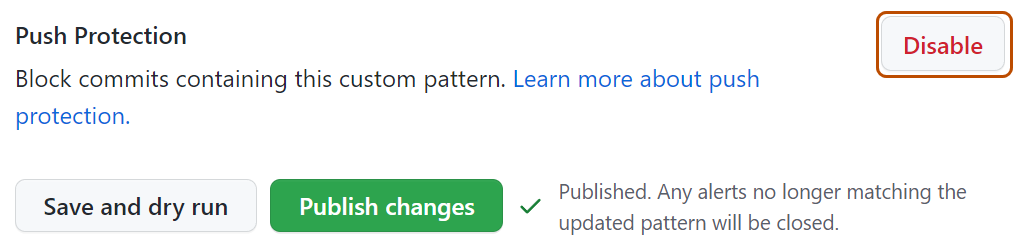
Optionally, to disable push protection for your custom pattern, click Disable.


Removing a custom pattern
When you remove a custom pattern, GitHub gives you the option to close the alertas de examen de secretos relating to the pattern, or keep these alerts.
- Navegar a donde se creó el patrón personalizado. Un patrón personalizado se puede crear en un repositorio, organización o cuenta empresarial.
- Para un repositorio u organización, muestre la configuración "Advanced Security" para el repositorio u organización donde se creó el patrón personalizado. Para más información, consulta Definición de un patrón personalizado para un repositorio o Definición de un patrón personalizado para una organización.
- Para una empresa, en "Directivas" visualice el área "Advanced Security" y, a continuación, haga clic en Características de seguridad. Para más información, consulta Definición de un patrón personalizado para una cuenta de empresa.
- To the right of the custom pattern you want to remove, click .
- Review the confirmation, and select a method for dealing with any open alerts relating to the custom pattern.
- Click Yes, delete this pattern.
If you choose to close the alerts when removing a custom pattern, you need to be aware that the deletion process happens asynchronously in the background. For custom patterns that have generated a high volume of alerts (thousands or more), the deletion process may take several minutes to hours to complete. You can continue working while the process completes.
Enabling push protection for a custom pattern
You can enable secret scanning as a push protection for custom patterns stored at the enterprise, organization, or repository level.
Enabling push protection for a custom pattern stored in an enterprise
Nota:
- Para habilitar la protección de inserción para patrones personalizados, secret scanning porque la protección de inserción debe habilitarse en el nivel empresarial. Para más información, consulta Acerca de la protección de inserción.
- La habilitación de la protección de inserción para patrones personalizados que se encuentran habitualmente puede ser perjudicial para los colaboradores.
Before enabling push protection for a custom pattern at enterprise level, you must also test your custom patterns using dry runs. Solo puedes realizar un simulacro en repositorios a los que tengas acceso de administración. Si un propietario de empresa quiere acceso para realizar simulacros en cualquier repositorio de una organización, se le debe asignar el rol de propietario de la organización. Para más información, consulta Administración del rol en una organización que pertenece a la empresa.
-
En la parte superior de la página, haz clic en Policies.
-
En "Directivas", haz clic en Advanced Security.
-
Under "Advanced Security", click Security features.
-
En "Secret scanning", en "Patrones personalizados", haz clic en para seleccionar el patrón que te interese.
Nota:
At the enterprise level, you can only edit and enable push protection for custom patterns that you created.
-
To enable push protection for your custom pattern, scroll down to "Push Protection", and click Enable.
Nota:
La opción para habilitar la protección de inserción solo es visible para los patrones publicados.
Enabling secret scanning as a push protection in an organization for a custom pattern
Before enabling push protection for a custom pattern at organization level, you must ensure that you enable secret scanning for the repositories that you want to scan in your organization. To enable secret scanning on all repositories in your organization, see Administrar la configuración de seguridad y análisis de su organización.
-
En la esquina superior derecha de GitHub, haz clic en la foto del perfil y luego en Your organizations.
-
Junto a la organización, haga clic en Settings.
-
In the "Security" section of the sidebar, select the Advanced Security dropdown menu, then click Global settings.
-
Under "Custom patterns", click for the pattern of interest.
-
To enable push protection for your custom pattern, scroll down to "Push Protection", and click Enable.
Nota:
- La opción para habilitar la protección de inserción solo es visible para los patrones publicados.
- La protección de inserción para patrones personalizados solo se aplicará a los repositorios de tu organización que tengan secret scanning como protección de inserción habilitada. Para más información, consulta Acerca de la protección de inserción.
- La habilitación de la protección de inserción para patrones personalizados que se encuentran habitualmente puede ser perjudicial para los colaboradores.
Enabling secret scanning as a push protection in a repository for a custom pattern
Before enabling push protection for a custom pattern at repository level, you must define the custom pattern for the repository, and test it in the repository. For more information, see Defining custom patterns for secret scanning.
-
En GitHub, navegue hasta la página principal del repositorio.
-
Debajo del nombre del repositorio, haz clic en Settings. Si no puedes ver la pestaña "Configuración", selecciona el menú desplegable y, a continuación, haz clic en Configuración.

-
En la sección "Security" de la barra lateral, haz clic en Advanced Security.
-
Under "Secret Protection", under "Custom patterns", click for the pattern of interest.
-
To enable push protection for your custom pattern, scroll down to "Push Protection", and click Enable.
Nota:
La opción para habilitar la protección de inserción solo es visible para los patrones publicados.
