Du kannst über die Sicherheitsübersicht anzeigen, welche Repositorys und Teams die einzelnen Sicherheitsfeatures bereits aktiviert haben, und wo Benutzende mehr Unterstützung benötigen, um diese Features zu übernehmen.
Hinweis
"Pull Request-Warnungen" werden nur dann als aktiviert gemeldet, wenn code scanning mindestens einen Pull Request analysiert hat, seit Warnungen für das Repository aktiviert wurden.
Anzeigen der Aktivierung von Sicherheitsfunktionen für eine Organisation
Du kannst Daten anzeigen, um die Aktivierung von Features für das Schreiben von sicherem Code in Repositorys in einer Organisation zu bewerten.
- Navigieren Sie auf GitHub zur Hauptseite der Organisation.
- Klicken Sie unter dem Namen Ihrer Organisation auf die Security and quality Registerkarte.
- Um die Ansicht "Sicherheitsabdeckung" anzuzeigen, klicken Sie in der Randleiste auf "Abdeckung".
- Verwende die Optionen in der Seitenzusammenfassung, um Ergebnisse zu filtern, um die Repositorys anzuzeigen, die du bewerten möchtest. Die Liste der Repositorys und Metriken, die auf der Seite angezeigt werden, wird automatisch aktualisiert, um deiner aktuellen Auswahl zu entsprechen. Weitere Informationen zur Filterung findest du unter Filtern von Warnungen in der Sicherheitsübersicht.
- Verwende das Dropdownmenü Teams, um nur Informationen zu Repositorys anzuzeigen, die einem oder mehreren Teams gehören. Weitere Informationen finden Sie unter Den Teamzugriff auf ein Repository einer Organisation verwalten.
- Klicke im Header eines Features auf ANZAHL aktiviert oder ANZAHL deaktiviert, um nur die Repositorys anzuzeigen, für die dieses Feature aktiviert oder deaktiviert ist.
- Klicke oben in der Liste der Repositorys auf ANZAHL Archiviert, um nur archivierte Repositorys anzuzeigen.
- Klicke in das Suchfeld, um den angezeigten Repositorys weitere Filter hinzuzufügen.
In der Liste der Repositorys zeigt das Label "Angehalten" unter "Dependabot" Repositorys an, für die Dependabot updates angehalten ist. Informationen zu Inaktivitätskriterien finden Sie unter Informationen zu Dependabot-Sicherheitsupdates und Informationen zu Updates von Dependabot-Versionen für Sicherheitsupdates bzw. Versionsupdates.
Anzeigen der Aktivierung von Features für das Schreiben von sicherem Code in einem Unternehmen
Du kannst Daten anzeigen, um die Aktivierung von Sicherheitsfeatures in Organisationen in einem Unternehmen zu bewerten.
- Navigieren Sie zu GitHub Enterprise Cloud.
- Klicke auf GitHub in der oberen rechten Ecke auf dein Profilbild.
- Klicken Sie je nach Ihrer Umgebung auf "Enterprise", oder klicken Sie auf " Unternehmen ", und klicken Sie dann auf das Unternehmen, das Sie anzeigen möchten.
- Klicken Sie oben auf der Seite auf die Security and quality Registerkarte.
- Um die Ansicht „Sicherheitsabdeckung“ anzuzeigen, klicke auf der Randleiste auf Abdeckung.
- Verwende die Optionen in der Seitenzusammenfassung, um Ergebnisse zu filtern, um die Repositorys anzuzeigen, die du bewerten möchtest. Die Liste der Repositorys und Metriken, die auf der Seite angezeigt werden, wird automatisch aktualisiert, um deiner aktuellen Auswahl zu entsprechen. Weitere Informationen zur Filterung findest du unter Filtern von Warnungen in der Sicherheitsübersicht.
-
Verwende das Dropdownmenü Teams, um nur Informationen zu Repositorys anzuzeigen, die einem oder mehreren Teams gehören. Weitere Informationen finden Sie unter Den Teamzugriff auf ein Repository einer Organisation verwalten.
-
Klicke im Header eines Features auf ANZAHL aktiviert oder ANZAHL deaktiviert, um nur die Repositorys anzuzeigen, für die dieses Feature aktiviert oder deaktiviert ist.
-
Klicke oben in der Liste der Repositorys auf ANZAHL Archiviert, um nur archivierte Repositorys anzuzeigen.
-
Klicke in das Suchfeld, um den angezeigten Repositorys weitere Filter hinzuzufügen.
Tipp
Sie können den Filter
ownerim Suchfeld verwenden, um die Daten nach Organisation zu filtern. Wenn Sie Besitzer einer Unternehmen mit verwalteten Benutzer*innen sind, können Sie denowner-typeFilter verwenden, um die Daten nach dem Typ des Repositorybesitzers zu filtern, sodass Sie Daten aus firmeneigenen Repositorys oder benutzereigenen Repositorys anzeigen können. Weitere Informationen findest du unter Filtern von Warnungen in der Sicherheitsübersicht. -
Darstellung von Aktivierungstrends für eine Organisation
Du kannst Daten anzeigen, um den Status und die Statustrends der Aktivierung von Sicherheitsfeatures für eine Organisation zu bewerten.
- Navigieren Sie auf GitHub zur Hauptseite der Organisation.
- Klicken Sie unter dem Namen Ihrer Organisation auf die Security and quality Registerkarte.
- Klicken Sie in der Randleiste unter "Insights" auf "Aktivieren".
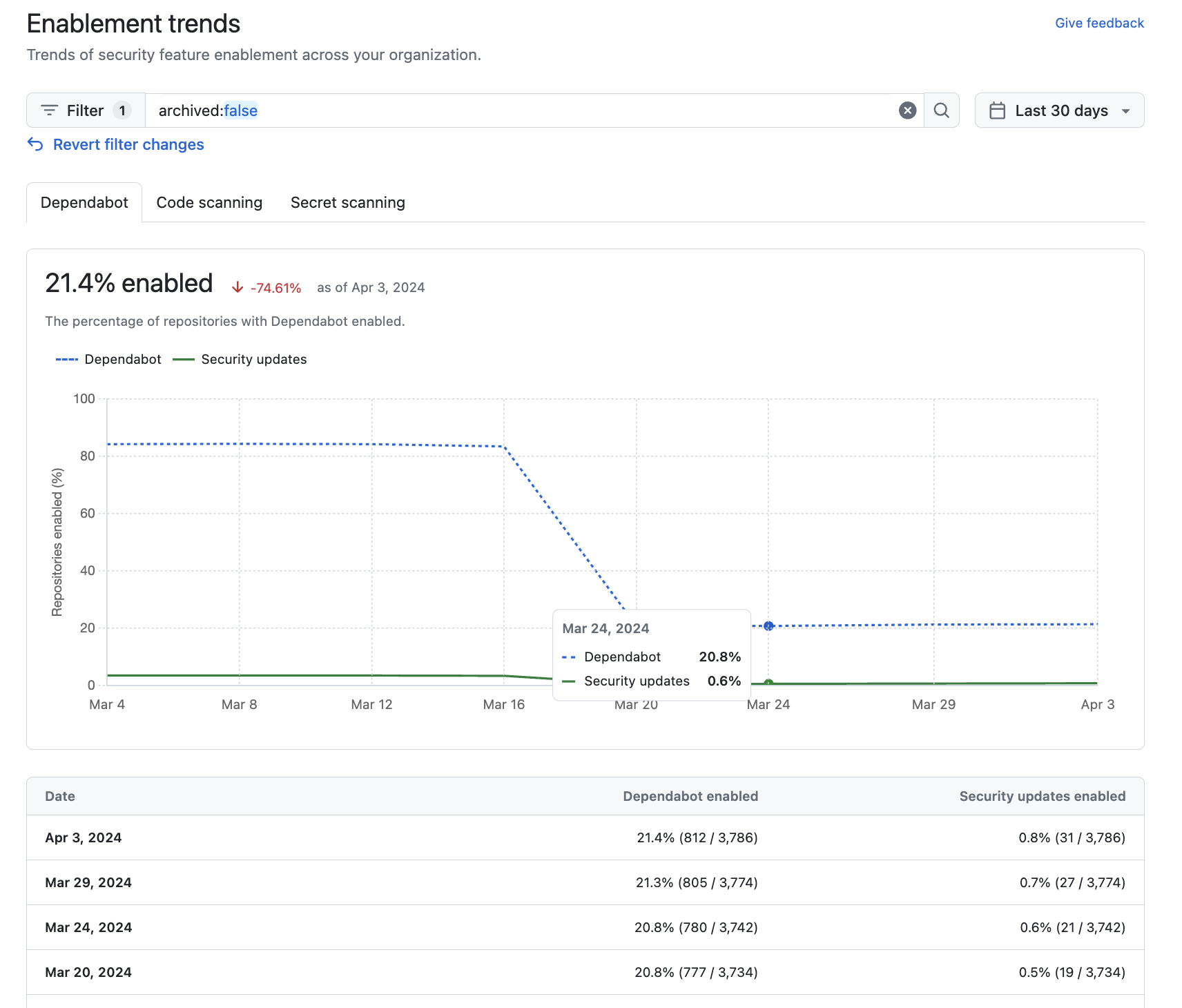
- Klicken Sie auf eine der Registerkarten für "Dependabot," "Code scanning" oder "Secret scanning", um Aktivierungstrends und den Prozentsatz der Repositorys in Ihrer Organisation anzuzeigen, wobei dieses Feature aktiviert ist. Diese Daten werden als Diagramm und eine detaillierte Tabelle angezeigt.
- Optional können Sie die Optionen oben auf der Seite „Aktivierungstrends“ verwenden, um die Gruppe der Repositorys zu filtern, für die Sie Aktivierungstrends anzeigen möchten.
-
Verwenden Sie die Datumsauswahl, um die Zeitspanne festzulegen, für die Sie Aktivierungstrends anzeigen möchten.
-
Klicken Sie in das Suchfeld, um den angezeigten Aktivierungstrends weitere Filter hinzuzufügen. Die Filter, die Sie anwenden können, sind identisch mit denen für die Dashboard-Ansicht „Übersicht“. Weitere Informationen finden Sie unter Filtern von Warnungen in der Sicherheitsübersicht.
-

Anzeigen von Aktivierungstrends für ein Unternehmen
Du kannst Daten anzeigen, um den Aktivierungsstatus und die Statustrends der Aktivierung von Sicherheitsfunktionen in Organisationen innerhalb eines Unternehmens zu bewerten.
- Navigieren Sie zu GitHub Enterprise Cloud.
- Klicke auf GitHub in der oberen rechten Ecke auf dein Profilbild.
- Klicken Sie je nach Ihrer Umgebung auf "Enterprise", oder klicken Sie auf " Unternehmen ", und klicken Sie dann auf das Unternehmen, das Sie anzeigen möchten.
- Klicken Sie oben auf der Seite auf die Security and quality Registerkarte.
- Um die Ansicht "Enablement trends" anzuzeigen, klicken Sie in der Randleiste unter "Insights" auf "Enablement".
- Klicken Sie auf eine der Registerkarten für "Dependabot," "Code scanning" oder "Secret scanning", um Aktivierungstrends und den Prozentsatz der Repositorys in Organisationen in Ihrem Unternehmen anzuzeigen, wobei dieses Feature aktiviert ist. Diese Daten werden als Diagramm und eine detaillierte Tabelle angezeigt.
- Optional können Sie die Optionen oben auf der Seite „Aktivierungstrends“ verwenden, um die Gruppe der Repositorys zu filtern, für die Sie Aktivierungstrends anzeigen möchten.
- Verwenden Sie die Datumsauswahl, um die Zeitspanne festzulegen, für die Sie Aktivierungstrends anzeigen möchten.
- Klicken Sie in das Suchfeld, um den angezeigten Aktivierungstrends weitere Filter hinzuzufügen. Weitere Informationen finden Sie unter Filtern von Warnungen in der Sicherheitsübersicht.
Tipp
Sie können den Filter owner: im Suchfeld verwenden, um die Daten nach Organisation zu filtern. Weitere Informationen finden Sie unter Filtern von Warnungen in der Sicherheitsübersicht.
Handeln basierend auf Aktivierungsdaten
Nachdem Sie die Aktivierungsabdeckung überprüft haben, sollten Sie die folgenden Aktionen in Betracht ziehen.
-
Überprüfen Sie, ob Ihr Unternehmen übermäßig restriktive Richtlinien konfiguriert hat, die die Verwendung von Sicherheitsfeatures einschränken. Weitere Informationen findest du unter Implementierung von Richtlinien zur Codesicherheit und -analyse für Ihr Unternehmen.
-
Aktivieren Sie Features, die in allen Repositorys aktiviert werden sollen. Informationen zum Aktivieren von Features für eine ganze Organisation finden Sie unter Konfigurieren von Sicherheitsfeatures in Ihrer Organisation.
Beispielsweise verringern Warnungen zur Geheimnisüberprüfung und Pushschutz das Risiko eines Sicherheitslecks, unabhängig davon, welche Informationen im Repository gespeichert sind. Wenn Repositorys angezeigt werden, die diese Features noch nicht verwenden, solltest du sie entweder aktivieren oder einen Aktivierungsplan mit dem Team besprechen, das das Repository besitzt.
-
Berücksichtigen Sie bei anderen Features, ob das Feature in weiteren Repositorys aktiviert werden soll. Es wäre beispielsweise nicht sinnvoll, Dependabot für Repositories zu aktivieren, die nur Ökosysteme oder Sprachen nutzen, die nicht unterstützt sind. Daher ist es normal, dass diese Features in einigen Repositorys nicht aktiviert sind.
Nächste Schritte
Sie können eine CSV-Datei der Auf der Seite "Sicherheitsabdeckung" angezeigten Daten herunterladen. Diese Datendatei kann für Anstrengungen wie Sicherheitsforschung und eingehende Datenanalyse verwendet werden und kann problemlos in externe Datasets integriert werden. Weitere Informationen findest du unter Exportieren von Daten über die Sicherheitsübersicht.
** Sie können die Ansicht "Aktivierungstrends" verwenden, um den Aktivierungsstatus und die entsprechenden Trends im Laufe der Zeit für Dependabot, code scanning oder secret scanning über Repositories oder Organisationen hinweg anzuzeigen. Siehe Anzeigen von Aktivierungstrends für eine Organisation oder Anzeigen von Aktivierungstrends für ein Unternehmen.