Informationen zum Dependabot
Diese Schnellstartanleitung führt Sie durch das Einrichten und Aktivieren von Dependabot, das Anzeigen von Dependabot alerts, und das Aktualisieren Ihres Repositorys, um eine Sicherheitsversion der Abhängigkeit zu verwenden.
Dependabot besteht aus drei verschiedenen Features, mit denen du Abhängigkeiten verwalten kannst:
- Dependabot alerts informiert dich über Sicherheitsrisiken in den Abhängigkeiten, die du in deinem Repository verwendest.
- Dependabot security updates löst automatisch Pull Requests aus, um von dir verwendete Abhängigkeiten zu aktualisieren, die bekannte Sicherheitsrisiken aufweisen.
- Dependabot version updates löst automatisch Pull Requests aus, um deine Abhängigkeiten auf dem neuesten Stand zu halten.
Voraussetzungen
Für diesen Leitfaden verwenden wir ein Demo-Repository, um zu veranschaulichen, wie Dependabot Schwachstellen in Abhängigkeiten gefunden werden, wo Sie Dependabot alerts auf GitHub sehen können und wie Sie diese Warnungen untersuchen, beheben oder ignorieren können.
Du musst zunächst das Demorepository forken.
- Navigieren Sie zu https://github.com/dependabot/demo.
- Klicken Sie oben rechts auf der Seite auf Fork.
- Wählen Sie einen Besitzer aus (Sie können Ihr GitHub persönliches Konto auswählen), und geben Sie einen Repositorynamen ein. Weitere Informationen zum Forken von Repositorys findest du unter Ein Repository forken.
- Klicke auf Fork erstellen.
Aktivieren Dependabot Ihres Repositories
Sie müssen die folgenden Schritte für das Repository ausführen, das Sie unter Voraussetzungen geforkt haben.
-
Navigieren Sie auf GitHub zur Hauptseite des Repositorys.
-
Klicke unter dem Repositorynamen auf Settings. Wenn die Registerkarte „Einstellungen“ nicht angezeigt wird, wähle im Dropdownmenü die Option Einstellungen aus.

-
Klicke im Abschnitt „Security“ der Randleiste auf Advanced Security.
-
Klicken Sie unter "Dependabot" auf "Aktivieren für Dependabot alerts, Dependabot security updatesund Dependabot version updates.
-
Wenn Sie auf Aktivieren für Dependabot version updates geklickt haben, können Sie die Standardkonfigurationsdatei
dependabot.ymlbearbeiten, die GitHub für Sie im/.github-Verzeichnis Ihres Repositorys erstellt. Um Dependabot version updates für Ihr Repository zu aktivieren, konfigurieren Sie die Datei typischerweise entsprechend Ihrer Anforderungen, indem Sie die Voreinstellungsdatei bearbeiten und Ihre Änderungen übernehmen. Ein Beispiel findest du im Codeausschnitt in Konfigurieren von Dependabot-Versionsupdates.

Hinweis
Wenn das Abhängigkeitsdiagramm für das Repository noch nicht aktiviert ist, wird es automatisch aktiviert, sobald Sie GitHub aktivieren.
Weitere Informationen zum Konfigurieren dieser Dependabot Features finden Sie unter Konfigurieren von Dependabot-Warnungen, Konfigurieren von Dependabot-Sicherheitsupdates und Konfigurieren von Dependabot-Versionsupdates.
Anzeigen von Dependabot alerts für Ihr Repository
Wenn Dependabot alerts für ein Repository aktiviert sind, können Sie Dependabot alerts auf der Security and quality Registerkarte des Repositorys anzeigen. Sie können das geforkte Repository verwenden, das Sie im vorherigen Abschnitt aktiviert haben Dependabot alerts.
-
Navigieren Sie auf GitHub zur Hauptseite des Repositorys.
-
Klicken Sie unter dem Repositorynamen auf die Security and quality Registerkarte. Wenn die Registerkarte " Security and quality" nicht angezeigt wird, wählen Sie das Dropdownmenü aus, und klicken Sie dann auf Security and quality.
-
Wählen Sie im Abschnitt "Ergebnisse" der Randleiste das Dependabot Dropdownmenü aus, und klicken Sie dann auf Sicherheitsanfälligkeiten.
-
Überprüfen Sie die geöffneten Warnungen auf der Dependabot alerts Seite. Standardmäßig wird auf der Seite die Registerkarte Offen angezeigt, auf der die offenen Warnungen aufgeführt sind. (Du kannst alle geschlossenen Warnungen anzeigen, indem du auf Geschlossen klickst.)
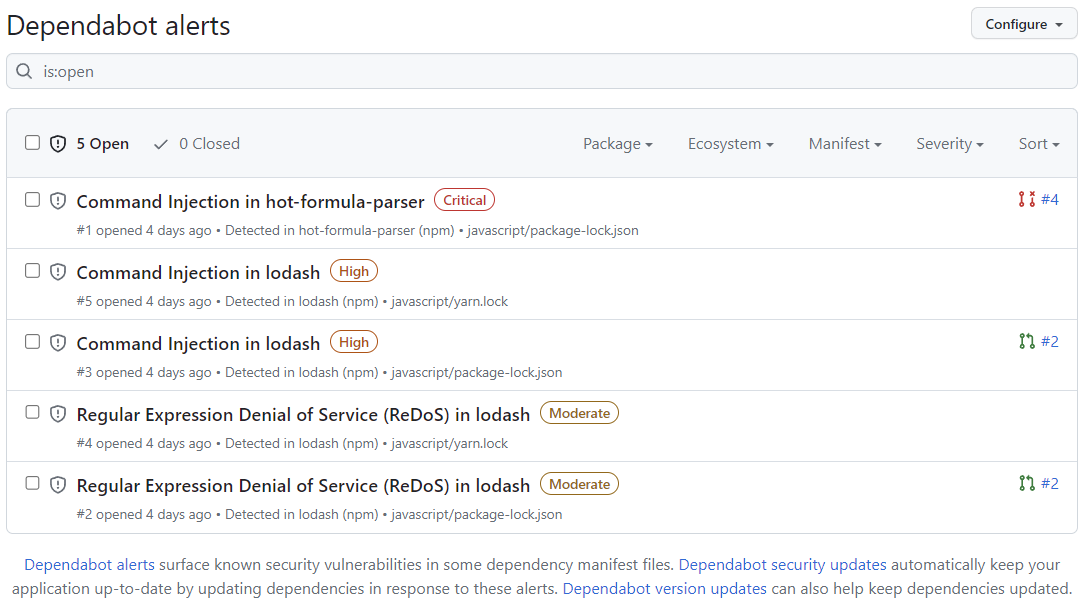
Sie können Dependabot alerts in der Liste filtern, indem Sie eine Vielzahl von Filtern oder Labels verwenden. Weitere Informationen finden Sie unter Anzeigen und Aktualisieren von Dependabot-Warnungen. Sie können auch Dependabot auto-triage rules verwenden, um falsch-positive Warnungen oder Benachrichtigungen herauszufiltern, die Sie nicht interessieren. Weitere Informationen finden Sie unter Über Auto-Triage-Regeln von Dependabot.
-
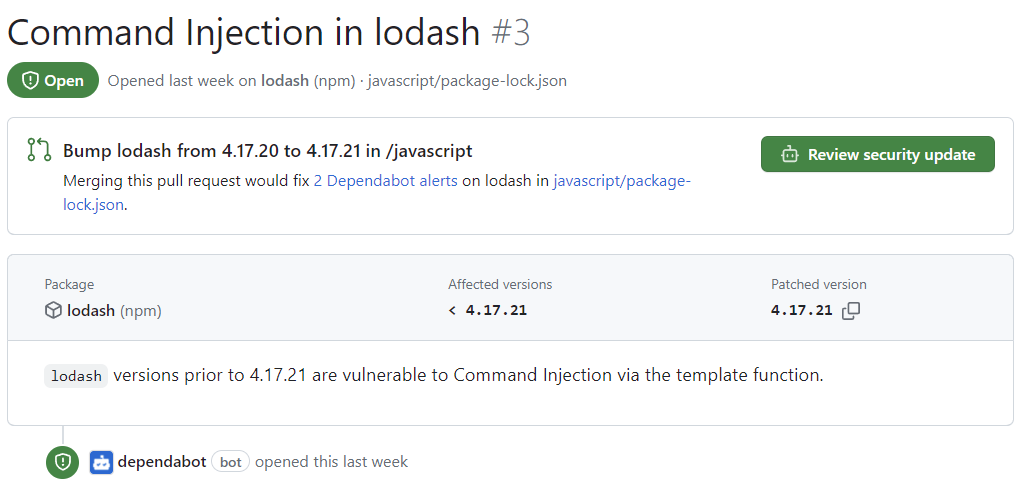
Klicke in der Datei javascript/package-lock.json auf die Warnung „Command Injection in lodash“ in der
javascript/package-lock.json-Datei. Auf der Detailseite für die Warnung werden die folgenden Informationen angezeigt (beachte, dass einige Informationen möglicherweise nicht für alle Warnungen gelten):- Gibt an, ob Dependabot eine Pullanforderung erstellt wurde, die die Sicherheitsanfälligkeit behebt. Du kannst das vorgeschlagene Sicherheitsupdate überprüfen, indem du auf Sicherheitsupdate überprüfen klickst.
- Eingebundenes Paket
- Betroffene Versionen
- Gepatchte Version
- Eine kurze Beschreibung des Sicherheitsrisikos
-
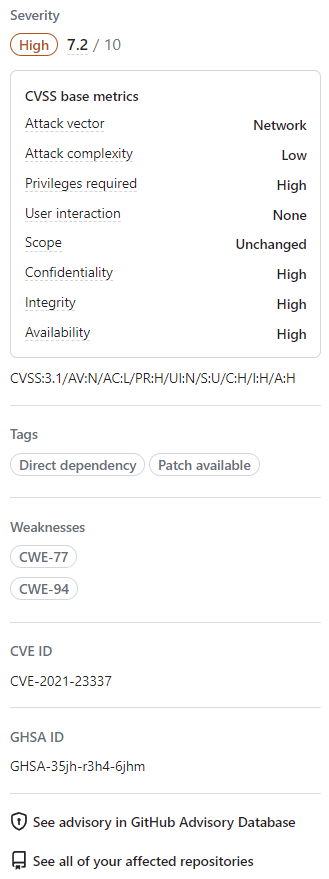
Optional kannst du auch die Informationen auf der rechten Seite untersuchen. Einige der im Screenshot gezeigten Informationen gelten möglicherweise nicht für jede Warnung.
- Schweregrad
- CVSS-Metriken: Wir verwenden CVSS-Ebenen, um Schweregrade zuzuweisen. Weitere Informationen finden Sie unter Informationen zu GitHub Advisory Database.
- Stichwörter
- Schwachstellen: Liste der CWEs im Zusammenhang mit dem Sicherheitsrisiko, falls zutreffend
- CVE-ID: eindeutiger CVE-Bezeichner des Sicherheitsrisikos, falls zutreffend
- GHSA ID: Eindeutiger Bezeichner der entsprechenden Empfehlung im GitHub Advisory Database. Weitere Informationen finden Sie unter Informationen zu GitHub Advisory Database.
- Option zum Navigieren zur Empfehlung auf der GitHub Advisory Database
- Option, um alle Repositorys anzuzeigen, die von diesem Sicherheitsrisiko betroffen sind
- Option zum Vorschlagen von Verbesserungen für diese Empfehlung auf der GitHub Advisory Database


Weitere Informationen zum Anzeigen, Priorisieren und Sortieren Dependabot alertsfinden Sie unter Anzeigen und Aktualisieren von Dependabot-Warnungen.
Beheben oder Schließen einer Dependabot Warnung
Sie können Dependabot alerts auf GitHub beheben oder schließen. Wir verwenden weiterhin das geforkte Repository als Beispiel und die im vorherigen Abschnitt beschriebene Warnung „Command Injection in lodash“.
- Navigieren Sie zur Dependabot Registerkarte für das Repository. Weitere Informationen finden Sie im Abschnitt Dependabot alerts oben.
- Klicke auf eine Warnung.
- Klicke in der Datei javascript/package-lock.json auf die Warnung „Command Injection in lodash“ in der
javascript/package-lock.json-Datei. - Sieh dir die Warnung an. Sie haben folgende Möglichkeiten:
-
Du kannst das vorgeschlagene Sicherheitsupdate überprüfen, indem du auf Sicherheitsupdate überprüfen klickst. Dadurch wird die von Dependabot generierte Pull-Anfrage mit dem Sicherheitsfix geöffnet.
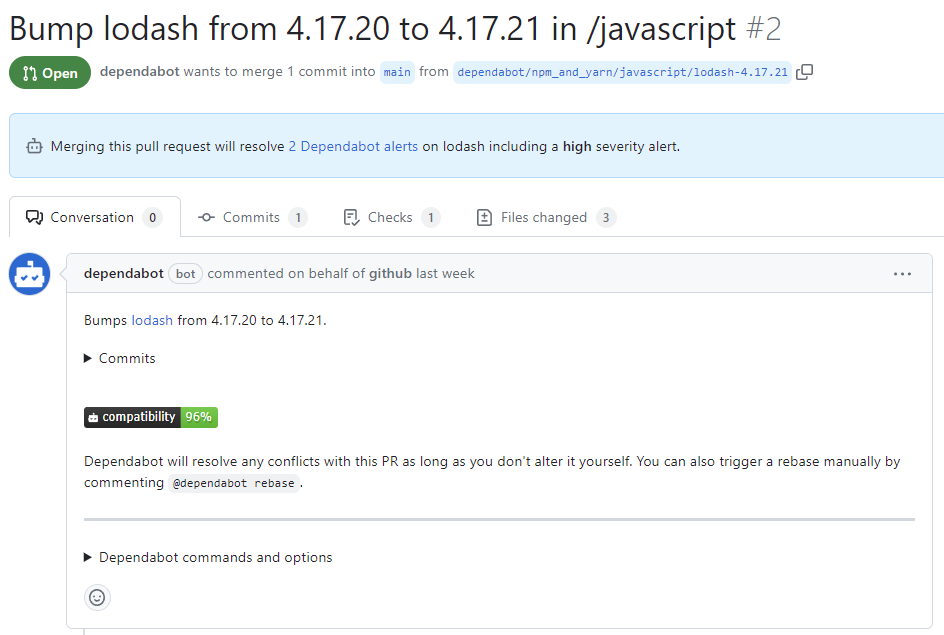
- In der Beschreibung des Pull Requests kannst du auf Commits klicken, um die im Pull Request enthaltenen Commits zu untersuchen.
- Sie können auch auf Befehle und Optionen klickenDependabot, um mehr über die Befehle zu erfahren, die Sie für die Interaktion mit der Pullanforderung verwenden können.
- Wenn du bereit bist, deine Abhängigkeit zu aktualisieren und die Behebung der Schwachstelle vorzunehmen, merge den Pull Request.
-
Wenn Sie die Meldung verwerfen möchten
-
Gehe zurück zur Seite mit den Warndetails.
-
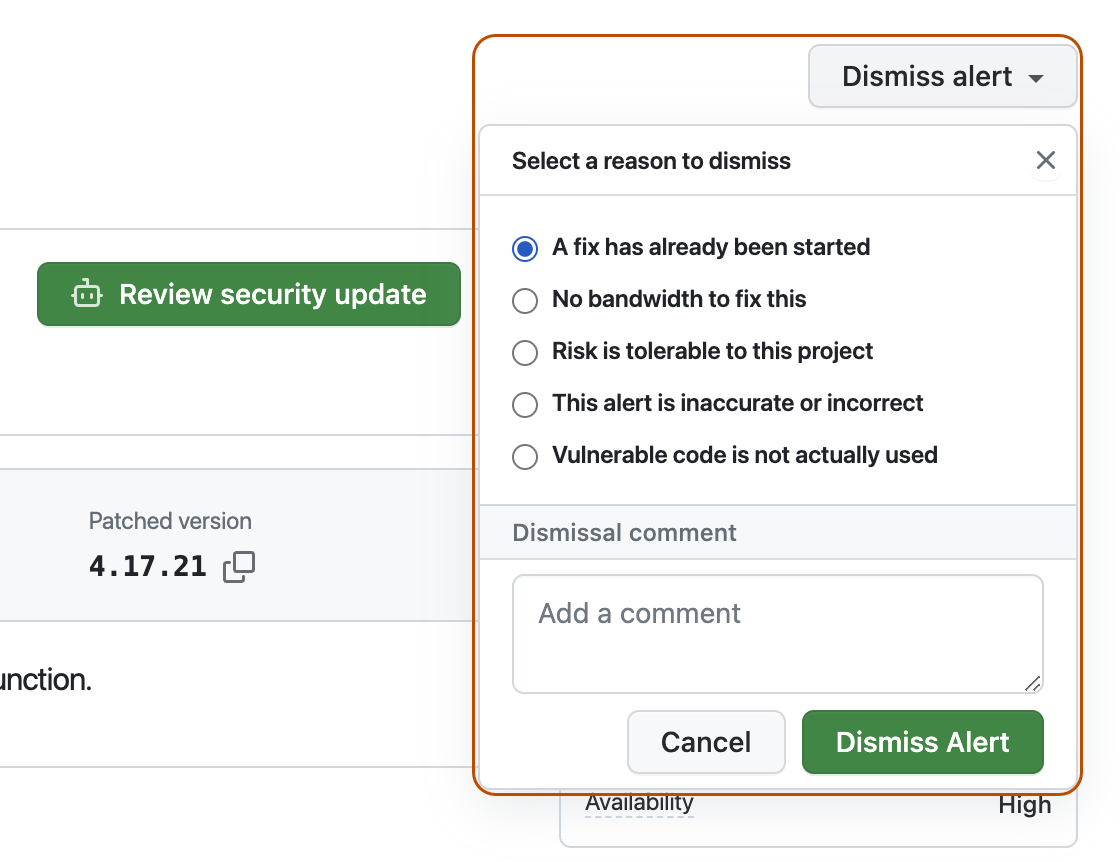
Klicken Sie oben rechts auf Warnung verwerfen.
-
Wähle einen Grund für das Beenden der Warnmeldung aus.
-
Füge optional einen Entlassungskommentar hinzu. Der Kommentar zum Schließen wird der Zeitleiste der Warnung hinzugefügt und kann bei Prüfungen und Berichterstellungen als Begründung verwendet werden.
-
Klicke auf Warnung schließen. Die Warnung wird auf der Registerkarte Offen der Warnungsliste nicht mehr angezeigt, aber Sie sehen sie auf der Registerkarte Geschlossen.
-
-


Weitere Informationen zum Überprüfen und Aktualisieren Dependabot alertsfinden Sie unter Anzeigen und Aktualisieren von Dependabot-Warnungen.
Problembehandlung
**
Möglicherweise musst du einige Fehlerbehebungen durchführen, wenn:
- Dependabot wird am Erstellen einer Pullanforderung zum Beheben einer Warnung gehindert, oder
- Die von Dependabot gemeldeten Informationen sind nicht wie erwartet.
Weitere Informationen findest du unter Dependabot-Fehler, Erkennung anfälliger Abhängigkeiten.
Nächste Schritte
Weitere Informationen zum Konfigurieren von Dependabot Updates finden Sie unter Konfigurieren von Dependabot-Sicherheitsupdates und Konfigurieren von Dependabot-Versionsupdates.
Weitere Informationen zum Konfigurieren Dependabot für eine Organisation finden Sie unter Konfigurieren von Dependabot-Warnungen.
Weitere Informationen zum Anzeigen von von Dependabot geöffneten Pull-Anfragen finden Sie unter Verwalten von Pull Requests für Abhängigkeitsupdates.
Weitere Informationen zu den Dependabot alertsSicherheitshinweisen finden Sie unter Durchsuchen von Sicherheitsempfehlungen in der GitHub Advisory Database.
Weitere Informationen zum Konfigurieren von Benachrichtigungen Dependabot alertsfinden Sie unter Konfigurieren von Benachrichtigungen für Dependabot-Warnungen.