Resolving alerts from secret scanning

After reviewing the details of a secret scanning alert, you should fix and then close the alert.

¿Quién puede utilizar esta característica?

Repository owners, organization owners, security managers, users assigned to alertas de examen de secretos, commit authors, and users with the admin role

En este artículo

Fixing alerts

Once a secret has been committed to a repository, you should consider the secret compromised. GitHub recommends the following actions for compromised secrets:

Reporting a leaked secret

Nota:

El proceso de informe de un secreto expuesto de forma privada a GitHub se encuentra en versión preliminar pública y está sujeto a cambios. The feature is currently only available for GitHub personal access tokens (v1 and v2).

If a secret is detected in a public repository on GitHub and the secret also matches a supported partner pattern, the potential secret is automatically reported to the service provider. For details of all supported partner patterns, see Supported secret scanning patterns.

For secrets detected in private repositories, anyone who can view alertas de examen de secretos for a repository can choose to report the privately exposed secret directly to GitHub.

By reporting the secret, the token provider will treat the privately exposed secret as if it had been publicly leaked. This means the token provider may revoke the secret, so you should first consider reviewing and updating any services that use the secret. If possible, you should also consider notifying the token owner before reporting the token, so that the token owner is aware that the secret may get revoked.

You will only see the option to report a privately exposed secret to GitHub if the following conditions are met:

  • The secret is a GitHub personal access token.
  • The secret's validity has not been confirmed, or the secret's validity has been confirmed as active.
  1. En GitHub, navegue hasta la página principal del repositorio.

  2. Debajo del nombre del repositorio, haz clic en Security. Si no puedes ver la pestaña "Security", selecciona el menú desplegable y, después, haz clic en Security.

    Captura de pantalla de un encabezado de repositorio en el que se muestran las pestañas. La pestaña "Seguridad" está resaltada con un contorno naranja oscuro.

  3. In the left sidebar, under "Vulnerability alerts", click Secret scanning.

  4. From the alert list, click the alert you want to view.

  5. In the alert view for the leaked secret, click Report leak.

    Nota:

    In order to prevent breaking workflows, consider first rotating the secret before continuing, as disclosing it could lead to the secret being revoked. If possible, you should also reach out to the token owner to let them know about the leak and coordinate a remediation plan.

  6. Review the information in the dialog box, then click I understand the consequence, report this secret.

Closing alerts

Nota:

Secret scanning doesn't automatically close alerts when the corresponding token has been removed from the repository. You must manually close these alerts in the alert list on GitHub.

  1. En GitHub, navegue hasta la página principal del repositorio.

  2. Debajo del nombre del repositorio, haz clic en Security. Si no puedes ver la pestaña "Security", selecciona el menú desplegable y, después, haz clic en Security.

    Captura de pantalla de un encabezado de repositorio en el que se muestran las pestañas. La pestaña "Seguridad" está resaltada con un contorno naranja oscuro.

  3. In the left sidebar, under "Vulnerability alerts", click Secret scanning.

  4. Under "Secret scanning", click the alert you want to view.

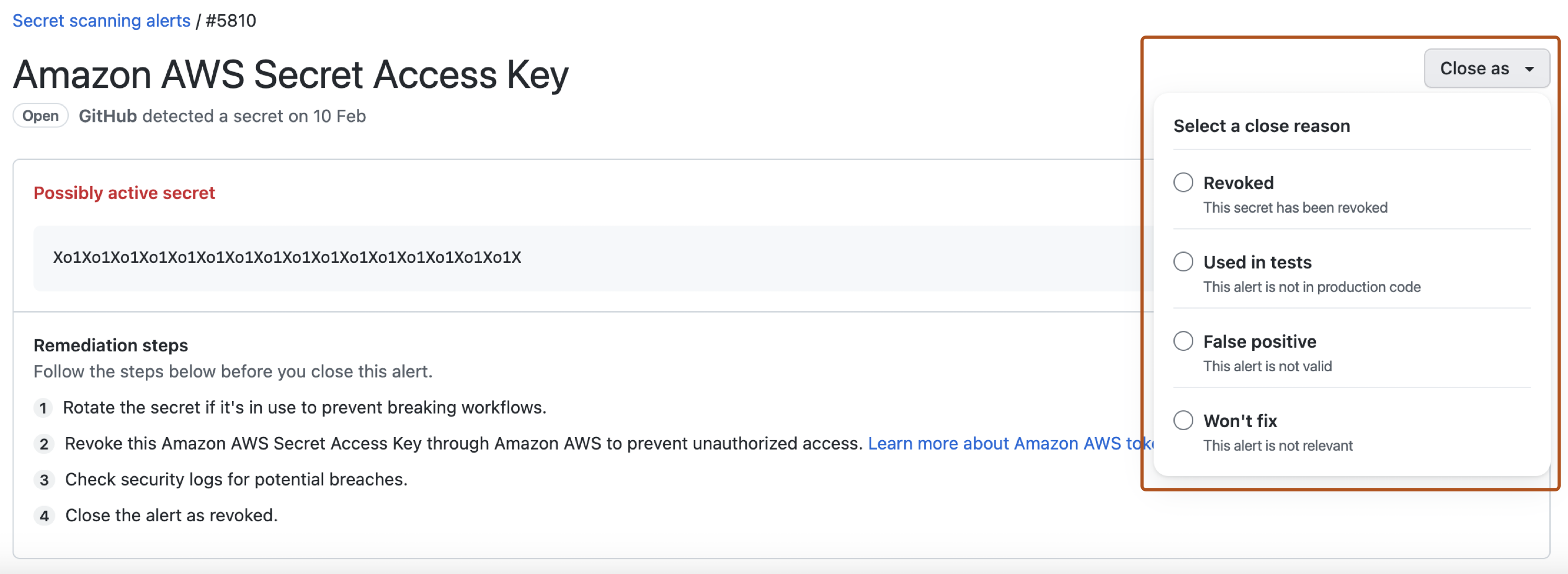
  5. To dismiss an alert, select the "Close as" dropdown menu and click a reason for resolving an alert.

    Screenshot of a secret scanning alert. A dropdown menu, titled "Close as", is expanded and highlighted in a dark orange outline.

  6. Optionally, in the "Comment" field, add a dismissal comment. The dismissal comment will be added to the alert timeline and can be used as justification during auditing and reporting. You can view the history of all dismissed alerts and dismissal comments in the alert timeline. You can also retrieve or set a comment by using the Secret scanning API. The comment is contained in the resolution_comment field. For more information, see Puntos de conexión de la API REST para el examen de secretos in the REST API documentation.

  7. Click Close alert.

Next steps