Anyone with read permission for a repository can see code scanning annotations on pull requests. For more information, see Triaging code scanning alerts in pull requests.
Viewing the alerts for a repository
You need write permission to view a summary of all the alerts for a repository on the Security tab.
By default, the code scanning alerts page is filtered to show alerts for the default branch of the repository only.
-
GitHub で、リポジトリのメイン ページに移動します。
-
リポジトリ名の下にある [Security] をクリックします。 [Security] タブが表示されない場合は、 ドロップダウン メニューを選んでから、[Security] をクリックします。
![タブを示すリポジトリ ヘッダーのスクリーンショット。 [セキュリティ] タブが濃いオレンジ色の枠線で強調表示されています。](/assets/cb-17801/images/help/repository/security-tab.png)
-
左側のサイドバーで、 [Code scanning] をクリックします。
-
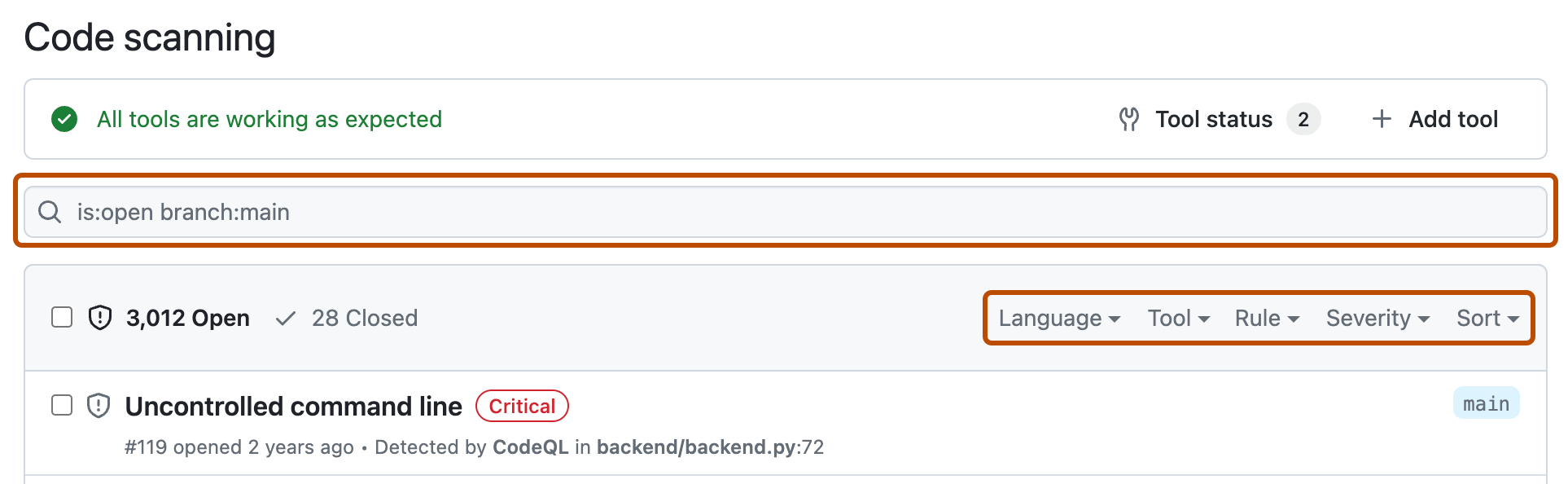
Optionally, use the free text search box or the dropdown menus to filter alerts. For example, you can filter by the tool that was used to identify alerts.
-
[Code scanning] で、調査するアラートをクリックすると、詳しいアラート ページが表示されます。 [アラート] ページのステータスと詳細は、他のブランチにアラートが存在する場合であっても、リポジトリの既定のブランチに対するアラートのステータスを反映するのみです。 既定以外のブランチのアラートの状態は、[アラート] ページの右側にある [影響を受けるブランチ] セクションで確認できます。 既定のブランチにアラートが存在しない場合、アラートの状態は、[in pull request] または [in branch] として、グレー表示されます。 [Development] セクションには、アラートを修正するリンク ブランチと pull request が表示されます。
-
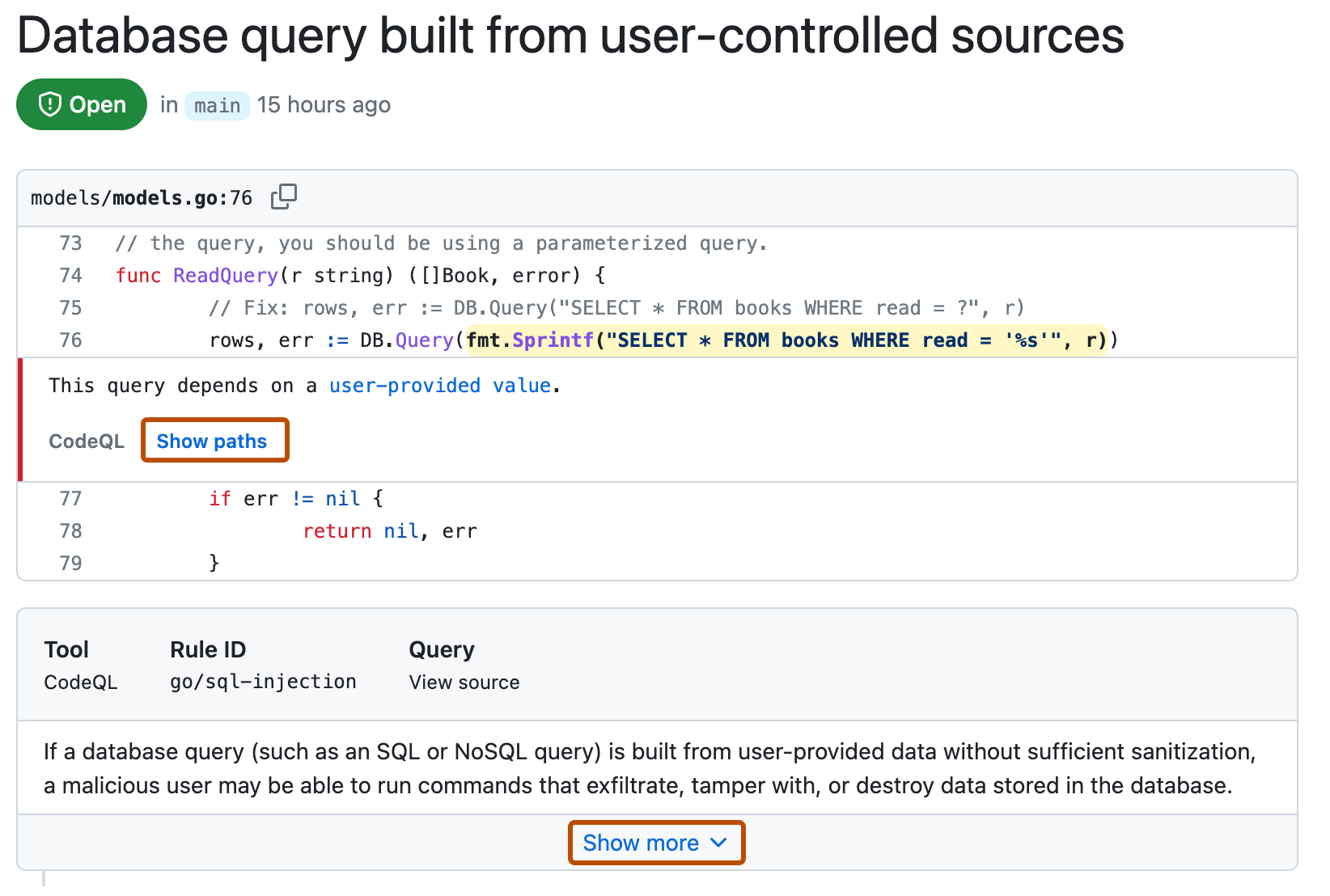
Optionally, if the alert highlights a problem with data flow, click Show paths to display the path from the data source to the sink where it's used.
-
Alerts from CodeQL analysis include a description of the problem. Click Show more for guidance on how to fix your code.
-
必要に応じて、右側に表示される [Assignees] コントロールを使って、アラートを修正する担当者に割り当てます。「アラートの割り当て」を参照してください。
![タブを示すリポジトリ ヘッダーのスクリーンショット。 [セキュリティ] タブが濃いオレンジ色の枠線で強調表示されています。](/assets/cb-17801/mw-1440/images/help/repository/security-tab.webp)


For more information, see Code scanningアラートについて.
メモ
You can see information about when code scanning analysis last ran on the tool status page. For more information, see コード スキャンのツール状態ページについて.
Viewing metrics for CodeQL pull request alerts for an organization
For code scanning alerts from CodeQL analysis, you can use security overview to see how CodeQL is performing in pull requests in repositories where you have write access across your organization, and to identify repositories where you may need to take action. For more information, see Viewing metrics for pull request alerts.
Filtering code scanning alerts
You can filter the alerts shown in the code scanning alerts view. This is useful if there are many alerts as you can focus on a particular type of alert. There are some predefined filters and a range of keywords that you can use to refine the list of alerts displayed.
When you select a keyword from either a drop-down list, or as you enter a keyword in the search field, only values with results are shown. This makes it easier to avoid setting filters that find no results.

If you enter multiple filters, the view will show alerts matching all these filters. For example, is:closed severity:high branch:main will only display closed high-severity alerts that are present on the main branch. The exception is filters relating to refs (ref, branch and pr): is:open branch:main branch:next will show you open alerts from both the main branch and the next branch.
既定ではないブランチでフィルター処理したのと同じアラートが、既定のブランチに存在する場合、そのアラートのアラート ページには、その状態が既定ではないブランチでの状態と競合する場合でも、既定のブランチのアラートの状態のみが反映されることに注意してください。 たとえば、アラートの概要の branch-x の [Open](オープン) リストに表示されるアラートは、そのアラートが既定のブランチで既に修正されている場合、アラート ページに "Fixed"(修正済み) の状態で表示される場合があります。 フィルター処理したブランチのアラートの状態は、アラート ページの右側の [Affected branches](影響を受けるブランチ) セクションで確認できます。
You can prefix the tag filter with - to exclude results with that tag. For example, -tag:style only shows alerts that do not have the style tag.
Restricting results to application code only
You can use the "Only alerts in application code" filter or autofilter:true keyword and value to restrict results to alerts in application code. For more information about the types of code that are automatically labeled as not application code, see Code scanningアラートについて.
Searching code scanning alerts
You can search the list of alerts. This is useful if there is a large number of alerts in your repository, or if you don't know the exact name for an alert for example. GitHub performs the free text search across:
- The name of the alert
- The alert details (this also includes the information hidden from view by default in the Show more collapsible section)
| Supported search | Syntax example | Results |
|---|---|---|
| Single word search | injection | Returns all the alerts containing the word injection |
| Multiple word search | sql injection | Returns all the alerts containing sql or injection |
| Exact match search (use double quotes) | "sql injection" | Returns all the alerts containing the exact phrase sql injection |
| OR search | sql OR injection | Returns all the alerts containing sql or injection |
| AND search | sql AND injection | Returns all the alerts containing both words sql and injection |
ヒント
- The multiple word search is equivalent to an OR search.
- The AND search will return results where the search terms are found anywhere, in any order in the alert name or details.
- GitHub で、リポジトリのメイン ページに移動します。
- リポジトリ名の下にある [Security] をクリックします。 [Security] タブが表示されない場合は、 ドロップダウン メニューを選んでから、[Security] をクリックします。
- 左側のサイドバーで、 [Code scanning] をクリックします。
- To the right of the Filters drop-down menus, type the keywords to search for in the free text search box.
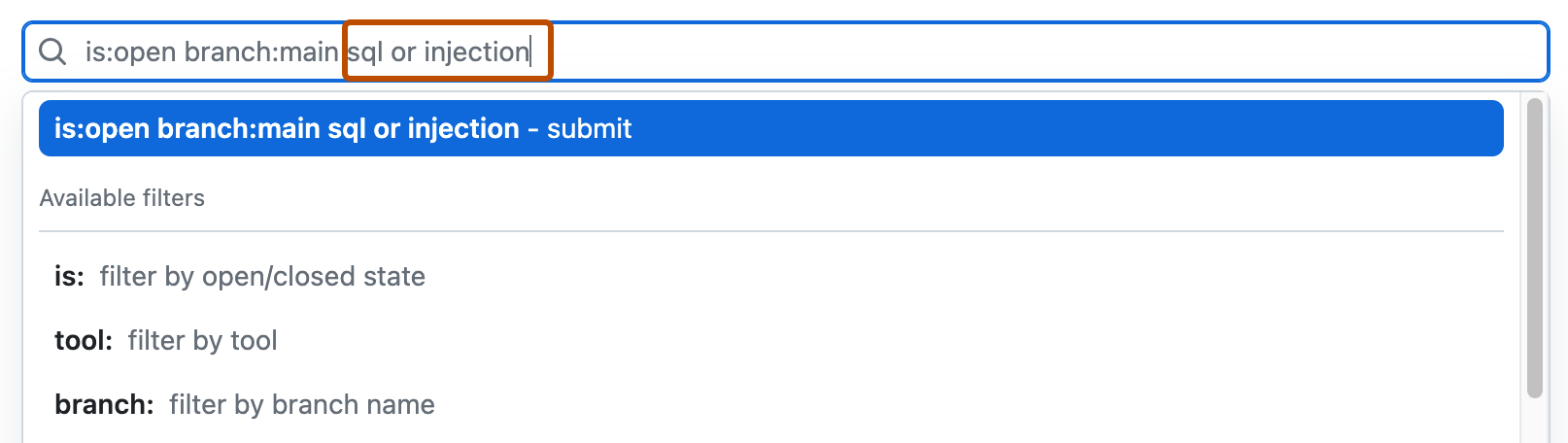
- Press return. The alert listing will contain the open code scanning alerts matching your search criteria.

Auditing responses to code scanning alerts
GitHub ツールを使用して、code scanning アラートに応答して実行されたアクションを監査できます。 詳しくは、「セキュリティ アラートの監査」をご覧ください。