About adoption of features for secure coding
You can use security overview to see which repositories and teams have already enabled each security feature, and where people need more encouragement to adopt these features. The "Security coverage" view shows a summary and detailed information on feature enablement for an organization. You can filter the view to show a subset of repositories using the "enabled" and "not enabled" links, the "Teams" dropdown menu, and a search field in the page header.

メモ
"Pull request alerts" are reported as enabled only when code scanning has analyzed at least one pull request since alerts were enabled for the repository.
You can download a CSV file of the data displayed on the "Security coverage" page. This data file can be used for efforts like security research and in-depth data analysis, and can integrate easily with external datasets. For more information, see Exporting data from security overview.
You can use the "Enablement trends" view to see enablement status and enablement status trends over time for Dependabot, code scanning, or secret scanning for repositories in an organization, or across organizations in an enterprise. For each of these features, you can view a graph visualizing the percentage of repositories that have the feature enabled, as well as a detailed table with enablement percentages for different points in time. For more information, see Viewing enablement trends for an organization and Viewing enablement trends for an enterprise.
Viewing the enablement of security features for an organization
You can view data to assess the enablement of features for secure coding across repositories in an organization.
-
GitHub で、organization のメイン ページに移動します。
-
Organization 名の下にある [ Security] をクリックします。
![組織の水平ナビゲーション バーのスクリーンショット。 盾のアイコンと [セキュリティ] というラベルのタブが、濃いオレンジ色の枠線で囲まれています。](/assets/cb-22170/images/help/organizations/organization-security-tab.png)
-
To display the "Security coverage" view, in the sidebar, click Coverage.
-
ページの概要のオプションを使って、評価するリポジトリを表示するように結果をフィルター処理します。 ページに表示されるリポジトリとメトリックの一覧は、現在の選択に合わせて自動更新されます。 フィルター処理について詳しくは、「Filtering alerts in security overview」をご覧ください。
- [Teams] ドロップダウンを使用し、1 チームまたは複数のチームが所有するリポジトリの情報のみを表示します。 詳しくは、「Organization のリポジトリに対するチームのアクセスを管理する」をご覧ください。
- 機能のヘッダーの [NUMBER enabled] または [NUMBER not enabled] をクリックすると、その機能が有効または無効になっているリポジトリのみが表示されます。
- リポジトリの一覧の上部にある [アーカイブされた番号] をクリックして、アーカイブされたリポジトリのみを表示します。
- 検索ボックス内をクリックすると、表示されているリポジトリにさらにフィルターを追加できます。
![組織の水平ナビゲーション バーのスクリーンショット。 盾のアイコンと [セキュリティ] というラベルのタブが、濃いオレンジ色の枠線で囲まれています。](/assets/cb-22170/mw-1440/images/help/organizations/organization-security-tab.webp)
Viewing the enablement of features for secure coding in an enterprise
You can view data to assess the enablement of security features across organizations in an enterprise.
- GitHub Enterprise Cloud に移動します。
- GitHub の右上隅にあるプロフィール画像をクリックします。
- 環境に応じて、[ エンタープライズ] をクリックするか、[ エンタープライズ ] をクリックして、表示するエンタープライズをクリックします。
- ページの上部にある [Security] をクリックします。
- To display the "Security coverage" view, in the sidebar, click Coverage.
- ページの概要のオプションを使って、評価するリポジトリを表示するように結果をフィルター処理します。 ページに表示されるリポジトリとメトリックの一覧は、現在の選択に合わせて自動更新されます。 フィルター処理について詳しくは、「Filtering alerts in security overview」をご覧ください。
-
[Teams] ドロップダウンを使用し、1 チームまたは複数のチームが所有するリポジトリの情報のみを表示します。 詳しくは、「Organization のリポジトリに対するチームのアクセスを管理する」をご覧ください。
-
機能のヘッダーの [NUMBER enabled] または [NUMBER not enabled] をクリックすると、その機能が有効または無効になっているリポジトリのみが表示されます。
-
リポジトリの一覧の上部にある [アーカイブされた番号] をクリックして、アーカイブされたリポジトリのみを表示します。
-
検索ボックス内をクリックすると、表示されているリポジトリにさらにフィルターを追加できます。
ヒント
検索フィールドで
ownerフィルターを使って、データを organization ごとにフィルター処理できます。 詳細については、「Filtering alerts in security overview」を参照してください。 -
Viewing enablement trends for an organization
You can view data to assess the enablement status and enablement status trends of security features for an organization.
-
GitHub で、organization のメイン ページに移動します。
-
Organization 名の下にある [ Security] をクリックします。
-
In the sidebar, under "Metrics," click Enablement trends.
-
Click on one of the tabs for "Dependabot," "Code scanning," or "Secret scanning" to view enablement trends and the percentage of repositories in your organization with that feature enabled. This data is displayed as a graph and a detailed table.
-
Optionally, use the options at the top of the "Enablement trends" view page to filter the group of repositories you want to see enablement trends for.
-
Use the date picker to set the time range that you want to view enablement trends for.
-
Click in the search box to add further filters on the enablement trends displayed. The filters you can apply are the same as those for the "Overview" dashboard view. For more information, see Filtering alerts in security overview.
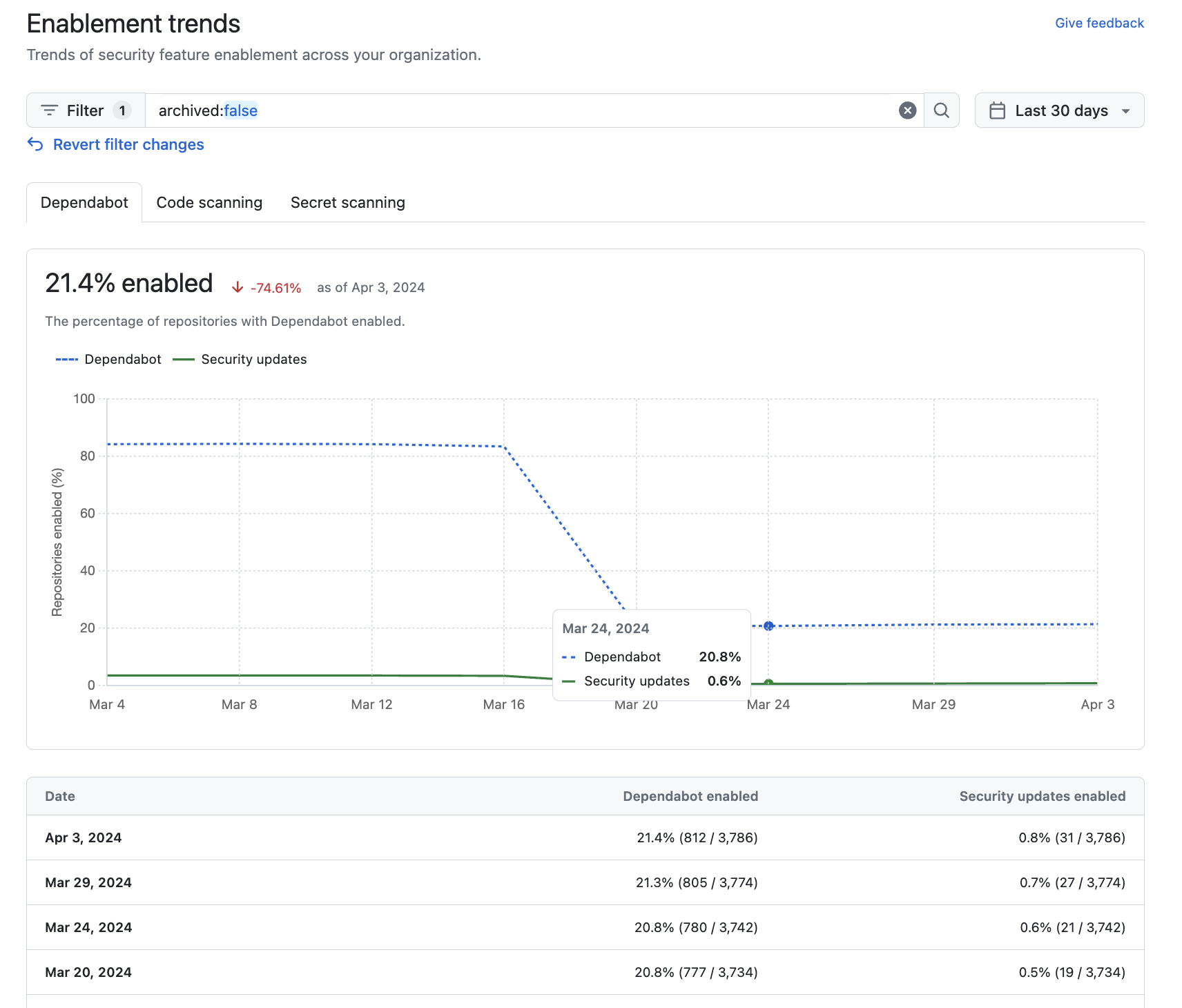
-

Viewing enablement trends for an enterprise
You can view data to assess the enablement status and enablement status trends of security features across organizations in an enterprise.
- GitHub Enterprise Cloud に移動します。
- GitHub の右上隅にあるプロフィール画像をクリックします。
- 環境に応じて、[ エンタープライズ] をクリックするか、[ エンタープライズ ] をクリックして、表示するエンタープライズをクリックします。
- ページの上部にある [Security] をクリックします。
- To display the "Enablement trends" view, in the sidebar, click Enablement trends.
- Click on one of the tabs for "Dependabot," "Code scanning," or "Secret scanning" to view enablement trends and the percentage of repositories across organizations in your enterprise with that feature enabled. This data is displayed as a graph and a detailed table.
- Optionally, use the options at the top of the "Enablement trends" view page to filter the group of repositories you want to see enablement trends for.
- Use the date picker to set the time range that you want to view enablement trends for.
- Click in the search box to add further filters on the enablement trends displayed. For more information, see Filtering alerts in security overview.
ヒント
You can use the owner: filter in the search field to filter the data by organization. For more information, see Filtering alerts in security overview.
Interpreting and acting on the enablement data
Some security features can and should be enabled on all repositories. For example, シークレット スキャンニング アラート and push protection reduce the risk of a security leak no matter what information is stored in the repository. If you see repositories that don't already use these features, you should either enable them or discuss an enablement plan with the team who owns the repository. For information on enabling features for a whole organization, see 組織のセキュリティを構成する.
Other features are not suitable for use in all repositories. For example, there would be no point in enabling Dependabot for repositories that only use ecosystems or languages that are unsupported. As such, it's normal to have some repositories where these features are not enabled.
Your enterprise may also have configured policies to limit the use of some security features. For more information, see エンタープライズのコード セキュリティと分析のためのポリシーの適用.