참고 항목
이 문서는 리포지토리 수준의 권고를 퍼블릭 리포지토리 소유자로서 편집하는 데 적용됩니다.
리포지토리를 소유하지 않은 사용자는 github.com/advisories에서 GitHub Advisory Database의 전체 보안 권고에 기여할 수 있습니다. 전역 공지에 대한 편집은 리포지토리에 공지가 표시되는 방식을 변경하거나 이에 영향을 미치지 않습니다. 자세한 내용은 Editing security advisories in the GitHub Advisory Database을(를) 참조하세요.
Prerequisites
Before you can publish a security advisory or request a CVE identification number, you must create a draft security advisory and provide information about the versions of your project affected by the security vulnerability. For more information, see Creating a repository security advisory.
If you've created a security advisory but haven't yet provided details about the versions of your project that the security vulnerability affects, you can edit the security advisory. For more information, see Editing a repository security advisory.
About publishing a security advisory
When you publish a security advisory, you notify your community about the security vulnerability that the security advisory addresses. Publishing a security advisory makes it easier for your community to update package dependencies and research the impact of the security vulnerability.
리포지토리 보안 공지를 사용하여 취약성의 세부 정보를 복사하여 새 보안 공지에 붙여 넣어 이미 다른 곳에서 공개한 보안 취약성의 세부 정보를 다시 게시할 수도 있습니다.
Before you publish a security advisory, you can privately collaborate to fix the vulnerability in a temporary private fork. For more information, see Collaborating in a temporary private fork to resolve a repository security vulnerability.
경고
Whenever possible, you should always add a fix version to a security advisory prior to publishing the advisory. If you don't, the advisory will be published without a fixed version, and Dependabot will alert your users about the issue, without offering any safe version to update to.
We recommend you take the following steps in these different situations:
- If a fix version is imminently available, and you are able to, wait to disclose the issue when the fix is ready.
- If a fix version is in development but not yet available, mention this in the advisory, and edit the advisory later, after publication.
- If you are not planning to fix the issue, be clear about it in the advisory so that your users don't contact you to ask when a fix will be made. In this case, it is helpful to include steps users can take to mitigate the issue.
When you publish a draft advisory from a public repository, everyone is able to see:
- The current version of the advisory data.
- Any advisory credits that the credited users have accepted.
참고 항목
The general public will never have access to the edit history of the advisory, and will only see the published version.
After you publish a security advisory, the URL for the security advisory will remain the same as before you published the security advisory. Anyone with read access to the repository can see the security advisory. Collaborators on the security advisory can continue to view past conversations, including the full comment stream, in the security advisory unless someone with admin permissions removes the collaborator from the security advisory.
If you need to update or correct information in a security advisory that you've published, you can edit the security advisory. For more information, see Editing a repository security advisory.
Publishing a security advisory
Publishing a security advisory deletes the temporary private fork for the security advisory.
-
GitHub에서 리포지토리의 기본 페이지로 이동합니다.
-
리포지토리 이름에서 Security를 클릭합니다. "Security" 탭이 표시되지 않으면 드롭다운 메뉴를 선택한 다음, Security를 클릭합니다.

-
왼쪽 사이드바의 "Reporting"에서 Advisories를 클릭합니다.
-
In the "Security Advisories" list, click the name of the security advisory you'd like to publish.
-
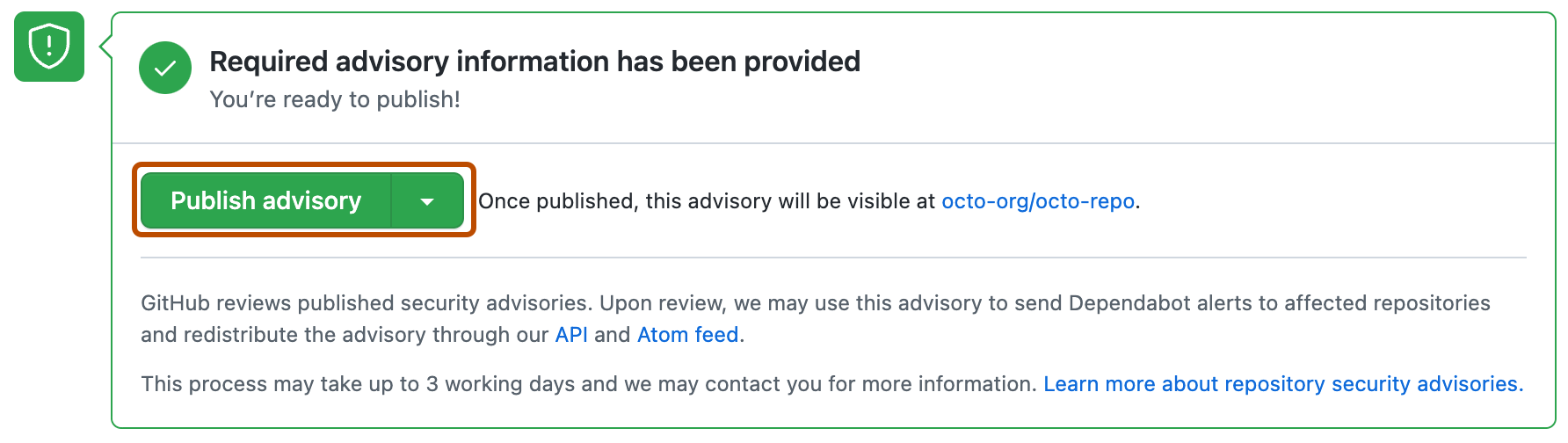
Scroll to the bottom of the advisory form and click Publish advisory.


참고 항목
If you selected "Request CVE ID later", you will see a Request CVE button in place of the Publish advisory button. For more information, see Requesting a CVE identification number (Optional) below.
Dependabot alerts for published security advisories
GitHub은 게시된 각 보안 권고를 검토하고, GitHub Advisory Database에 추가하고, 보안 권고를 사용하여 영향을 받는 리포지토리에 Dependabot alerts를 보낼 수 있습니다. 보안 권고가 포크에서 제공되는 경우 포크가 퍼블릭 패키지 레지스트리에 고유한 이름으로 게시된 패키지를 소유하는 경우에만 경고를 보냅니다. 이 프로세스는 최대 72시간이 걸릴 수 있으며 GitHub에서 자세한 내용을 보려면 연락할 수 있습니다.
Dependabot alerts에 대한 자세한 내용은 Dependabot 경고 정보 및 Dependabot 보안 업데이트 정보을(를) 참조하세요. GitHub Advisory Database에 대한 자세한 내용은 see Browsing security advisories in the GitHub Advisory Database을(를) 참조하세요.
Requesting a CVE identification number (Optional)
프로젝트의 보안 취약성에 대한 CVE 식별 번호를 원하지만 아직 보유하지 않은 경우 GitHub에서 CVE 식별 번호를 요청할 수 있습니다. GitHub는 일반적으로 72시간 이내에 요청을 검토합니다. CVE 식별 번호를 요청해도 보안 공지가 공개되지는 않습니다. 보안 공지가 CVE에 적합한 경우 GitHub는 공지에 CVE 식별 번호를 예약합니다. 그런 다음 보안 공지를 공개하면 CVE 세부 정보가 게시됩니다. 보안 공지에 대한 관리자 권한이 있는 사람은 누구나 CVE 식별 번호를 요청할 수 있습니다.
사용하려는 CVE가 이미 있는 경우(예: GitHub 이외의 CNA(CVE Numbering Authority)를 사용하는 경우) 보안 공지 양식에 CVE를 추가합니다. 예를 들어 게시 시 보낼 다른 통신과 일관된 권고를 원하는 경우 해당 상황이 발생할 수 있습니다. 다른 CNA에서 프로젝트를 다루는 경우 GitHub는 프로젝트에 CVE를 할당할 수 없습니다. For more information, see 리포지토리 보안 공지 정보.
-
GitHub에서 리포지토리의 기본 페이지로 이동합니다.
-
리포지토리 이름에서 Security를 클릭합니다. "Security" 탭이 표시되지 않으면 드롭다운 메뉴를 선택한 다음, Security를 클릭합니다.
-
왼쪽 사이드바의 "Reporting"에서 Advisories를 클릭합니다.
-
In the "Security Advisories" list, click the name of the security advisory you'd like to request a CVE identification number for.
-
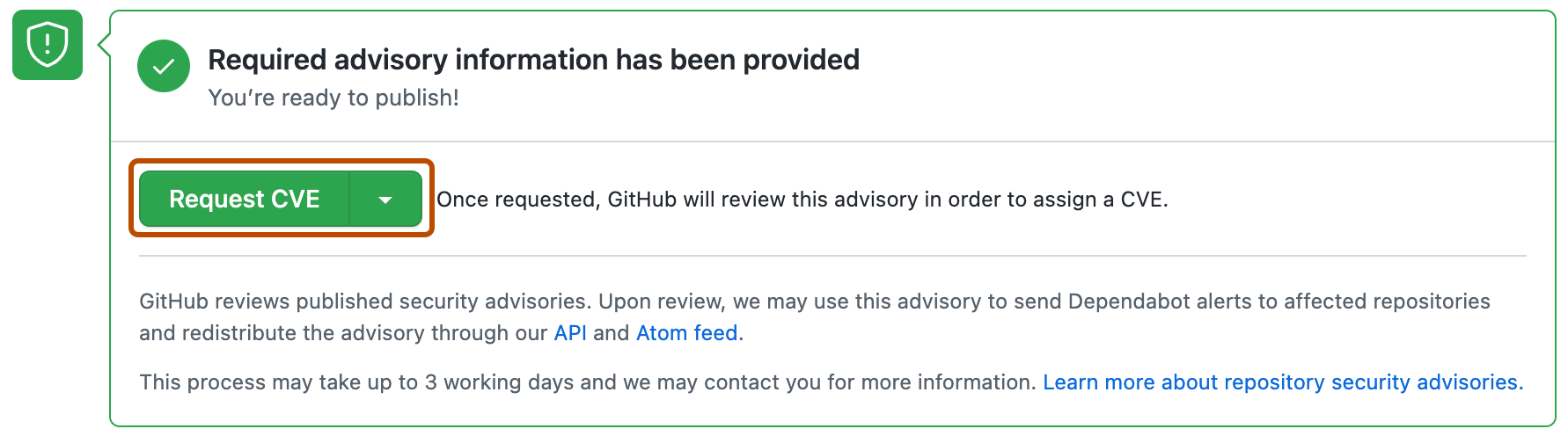
Scroll to the bottom of the advisory form and click Request CVE.