Puedes usar información general de seguridad para ver qué repositorios y equipos ya han habilitado cada característica de seguridad y dónde los usuarios necesitan que se los anime para adoptar estas características.
Nota:
Las "alertas de solicitud de incorporación de cambios" solo se notifican como habilitadas cuando code scanning se ha analizado al menos una solicitud de incorporación de cambios desde que se habilitaron las alertas para el repositorio.
Visualización de la habilitación de las características de seguridad de una organización
Puedes ver los datos para evaluar la habilitación de características para codificar de forma segura entre repositorios de una organización.
- En GitHub, navega a la página principal de tu organización.
- Debajo del nombre de su organización, haga clic en la pestaña Security and quality.
- Para mostrar la vista "Cobertura de seguridad", en la barra lateral, haga clic en Cobertura.
- Use las opciones del resumen de la página para filtrar los resultados y mostrar los repositorios que desea evaluar. La lista de repositorios y métricas que se muestran en la página se actualizan automáticamente para que coincidan con la selección actual. Para obtener más información sobre los filtros, consulta Filtrar alertas en la información general sobre seguridad.
- Use el menú desplegable Teams para mostrar información solo para los repositorios que pertenecen a uno o varios equipos. Para más información, consulta Administrar el acceso de equipo a un repositorio de la organización.
- Haga clic en NUMBER habilitado o EN NUMBER no habilitado en el encabezado de cualquier característica para mostrar solo los repositorios con esa característica habilitada o no habilitada.
- En la parte superior de la lista de repositorios, haga clic en NUMBER Archived para mostrar solo los repositorios archivados.
- Haga clic en el cuadro de búsqueda para agregar más filtros a los repositorios que se muestran.
Visualización de la habilitación de características para la codificación segura en una empresa
Puedes ver datos para evaluar la habilitación de las características de seguridad en todas las organizaciones de una empresa.
- Vaya a GitHub Enterprise Cloud.
- En la esquina superior derecha de GitHub, haz clic en la fotografía de perfil.
- En función de su entorno, haga clic en Enterprise o en Empresas y, a continuación, haga clic en la empresa que desea ver.
- En la parte superior de la página, haga clic en la Security and quality pestaña .
- Para mostrar la vista "Cobertura de seguridad", en la barra lateral, haz clic en Cobertura.
- Use las opciones del resumen de la página para filtrar los resultados y mostrar los repositorios que desea evaluar. La lista de repositorios y métricas que se muestran en la página se actualizan automáticamente para que coincidan con la selección actual. Para obtener más información sobre los filtros, consulta Filtrar alertas en la información general sobre seguridad.
-
Use el menú desplegable Teams para mostrar información solo para los repositorios que pertenecen a uno o varios equipos. Para más información, consulta Administrar el acceso de equipo a un repositorio de la organización.
-
Haga clic en NUMBER habilitado o EN NUMBER no habilitado en el encabezado de cualquier característica para mostrar solo los repositorios con esa característica habilitada o no habilitada.
-
En la parte superior de la lista de repositorios, haga clic en NUMBER Archived para mostrar solo los repositorios archivados.
-
Haga clic en el cuadro de búsqueda para agregar más filtros a los repositorios que se muestran.
Sugerencia
Puedes usar el filtro
owneren el campo de búsqueda para filtrar los datos por organización. Para obtener más información, consulta Filtrar alertas en la información general sobre seguridad. -
Visualización de tendencias de habilitación para una organización
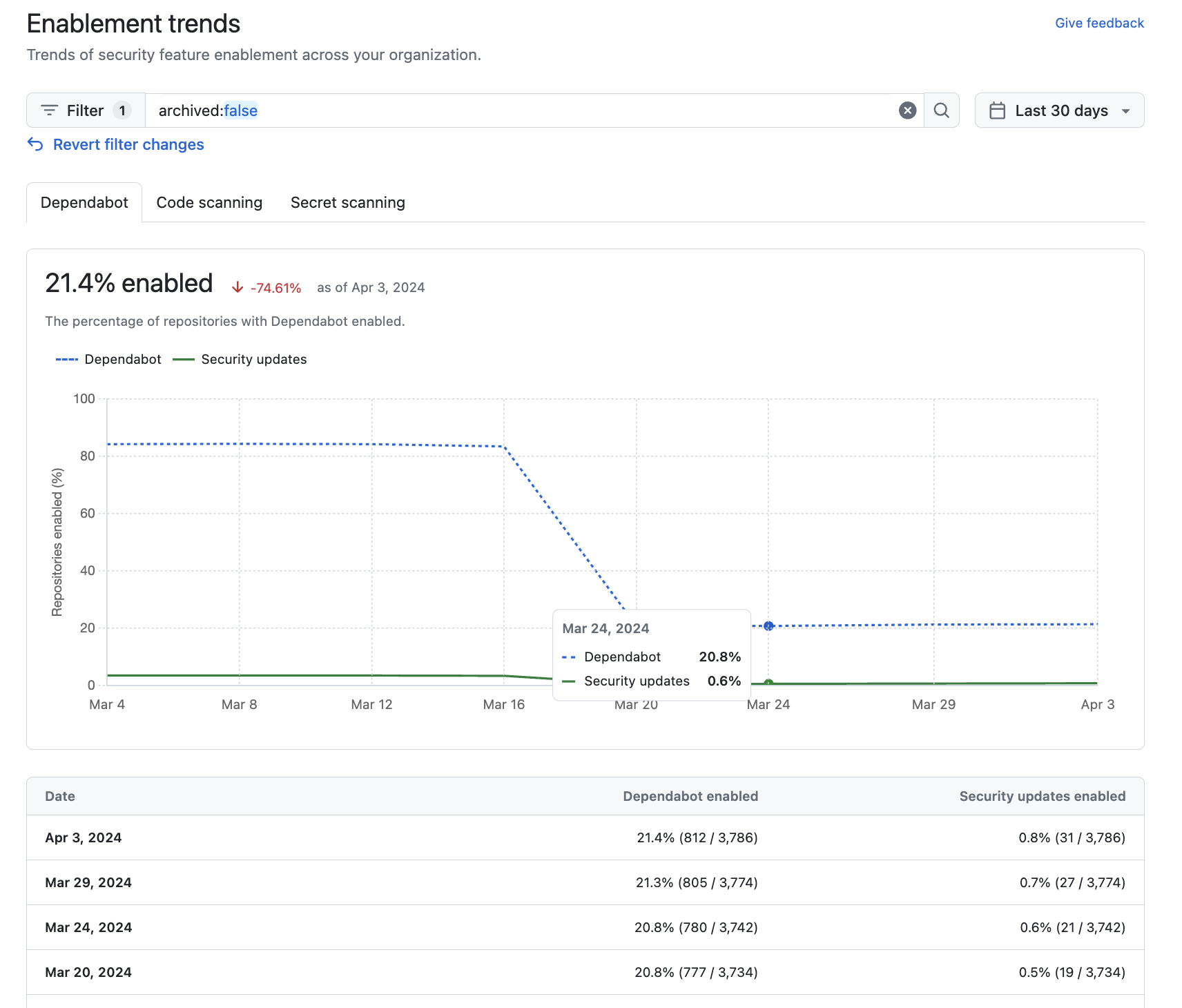
Puedes ver los datos para evaluar el estado de habilitación y las tendencias de estado de habilitación de las características de seguridad para una organización.
- En GitHub, navega a la página principal de tu organización.
- Debajo del nombre de su organización, haga clic en la pestaña Security and quality.
- En la barra lateral, en "Insights", haga clic en Habilitar.
- Haga clic en una de las pestañas "Dependabot," "Code scanning" o "Secret scanning" para ver las tendencias de habilitación y el porcentaje de repositorios de su organización con esa funcionalidad habilitada. Estos datos se muestran en un gráfico y una tabla detallada.
- Opcionalmente, use las opciones de la parte superior de la página de la vista "Tendencias de habilitación" para filtrar el grupo de repositorios para el que quiere ver las tendencias de habilitación.
-
Usa el selector de fecha para establecer el intervalo de tiempo para el que quieres ver las tendencias de habilitación.
-
Haz clic en el cuadro de búsqueda para agregar más filtros a las tendencias de habilitación que se muestran. Los filtros que puedes aplicar son los mismos que los de la vista del panel "Información general". Para más información, consulta Filtrar alertas en la información general sobre seguridad.
-

Análisis de tendencias de habilitación para una organización
Puedes ver los datos para evaluar el estado de habilitación y las tendencias de estado de habilitación de las características de seguridad entre organizaciones en una empresa.
- Vaya a GitHub Enterprise Cloud.
- En la esquina superior derecha de GitHub, haz clic en la fotografía de perfil.
- En función de su entorno, haga clic en Enterprise o en Empresas y, a continuación, haga clic en la empresa que desea ver.
- En la parte superior de la página, haga clic en la Security and quality pestaña .
- Para mostrar la vista "Tendencias de habilitación", en la barra lateral, en "Información", haga clic en Habilitación.
- Haga clic en una de las pestañas de "Dependabot," "Code scanning," o "Secret scanning" para ver las tendencias de habilitación y el porcentaje de repositorios en las organizaciones de su empresa que tienen habilitada esa característica. Estos datos se muestran en un gráfico y una tabla detallada.
- Opcionalmente, use las opciones de la parte superior de la página de la vista "Tendencias de habilitación" para filtrar el grupo de repositorios para el que quiere ver las tendencias de habilitación.
- Usa el selector de fecha para establecer el intervalo de tiempo para el que quieres ver las tendencias de habilitación.
- Haz clic en el cuadro de búsqueda para agregar más filtros a las tendencias de habilitación que se muestran. Para más información, consulta Filtrar alertas en la información general sobre seguridad.
Sugerencia
Puedes usar el filtro owner: en el campo de búsqueda para filtrar los datos por organización. Para más información, consulta Filtrar alertas en la información general sobre seguridad.
Actuar sobre los datos de habilitación
Después de revisar la cobertura de habilitación, tenga en cuenta las siguientes acciones.
-
Compruebe si la empresa ha configurado directivas excesivamente restrictivas que limitan el uso de características de seguridad. Consulta Aplicación de directivas de seguridad y análisis de código de la empresa.
-
Habilite las características que deben habilitarse en todos los repositorios. Para obtener información sobre cómo habilitar características para toda una organización, consulte Configuración de características de seguridad en su organización.
Por ejemplo, alertas de detección de secretos y la protección de push reducen el riesgo de una fuga de seguridad independientemente de la información almacenada en el repositorio. Si ve repositorios que todavía no usan estas características, debe habilitarlos o analizar un plan de habilitación con el equipo propietario del repositorio.
-
Para otras características, considere si la característica debe estar habilitada en más repositorios. Por ejemplo, no habría ningún punto en habilitar Dependabot para los repositorios que solo usan ecosistemas o lenguajes que no son compatibles. Por lo tanto, es normal tener algunos repositorios en los que estas características no están habilitadas.
Pasos siguientes
Puede descargar un archivo CSV de los datos que se muestran en la página "Cobertura de seguridad". Este archivo de datos se puede usar para trabajos de investigación de seguridad y el análisis detallado de datos y se puede integrar fácilmente con conjuntos de datos externos. Consulta Exportación de datos con la información general sobre seguridad.
Puede usar la vista "Tendencias de habilitación" para ver el estado de habilitación y las tendencias de estado de habilitación a lo largo del tiempo para Dependabot, code scanning, o secret scanning en repositorios u organizaciones. Consulte Visualización de tendencias de habilitación para una organización o Visualización de tendencias de habilitación para una empresa.