Cualquier persona con permiso de lectura para un repositorio puede ver code scanning anotaciones en las solicitudes de incorporación de cambios. Para más información, consulta Clasificar las alertas del escaneo de código en las solicitudes de cambios.
Visualizar las alertas de un repositorio
Necesita permiso de escritura para ver un resumen de todas las alertas de un repositorio en la pestaña Security and quality.
De forma predeterminada, la code scanning página de alertas se filtra para mostrar alertas solo para la rama predeterminada del repositorio.
-
En GitHub, navegue hasta la página principal del repositorio.
-
En el nombre del repositorio, haga clic en la Security and quality pestaña . Si no puede ver la pestaña " Security and quality", seleccione el menú desplegable y, a continuación, haga clic en Security and quality.
-
En la barra lateral de la izquierda, haz clic en Code scanning.
-
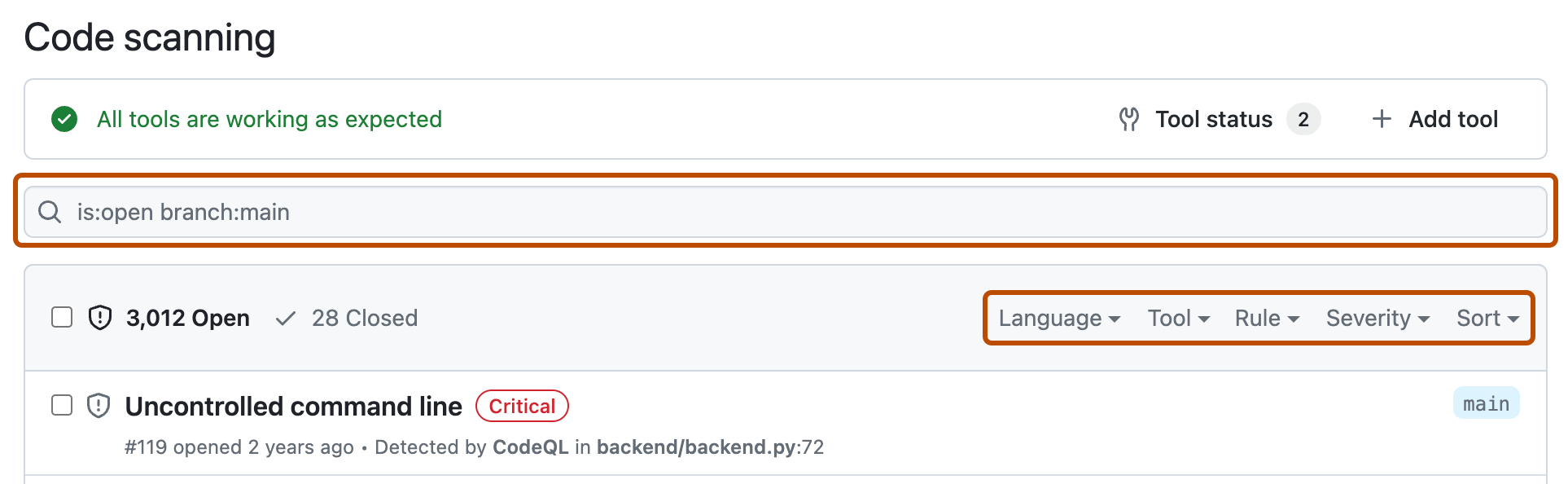
Opcionalmente, utiliza la caja de búsqueda de texto libre o los menús desplegables para filtrar las alertas. Por ejemplo, puede filtrar por la herramienta que se usó para identificar alertas. Los problemas vinculados GitHub se muestran junto con sus alertas correspondientes en la vista de listado.
-
Debajo de "Code scanning", haz clic en la alerta que quieras explorar para mostrar la página de alerta detallada. El estado y los detalles de la página de alertas solo reflejan el estado de la alerta en la rama predeterminada del repositorio, incluso si la alerta existe en otras ramas. Puede ver el estado de la alerta en ramas no predeterminadas en la sección Ramas afectadas del lado derecho de la página de alertas. Si una alerta no existe en la rama predeterminada, el estado de la alerta se mostrará como "en la solicitud de incorporación de cambios" o "en la rama", y tendrá un color gris. En la sección Desarrollo se muestran ramas vinculadas y solicitudes de incorporación de cambios que corregirán la alerta.
-
Opcionalmente, si la alerta resalta un problema con el flujo de datos, haga clic en Mostrar rutas para mostrar la ruta desde el origen de datos hacia el receptor en el que se usa. La vista de la ruta muestra cada paso del flujo de datos como una lista numerada, desde el punto en el que los datos proporcionados por el usuario entran en el código (el origen) hasta el punto en el que esos datos se usan en una operación potencialmente insegura (el sumidero).
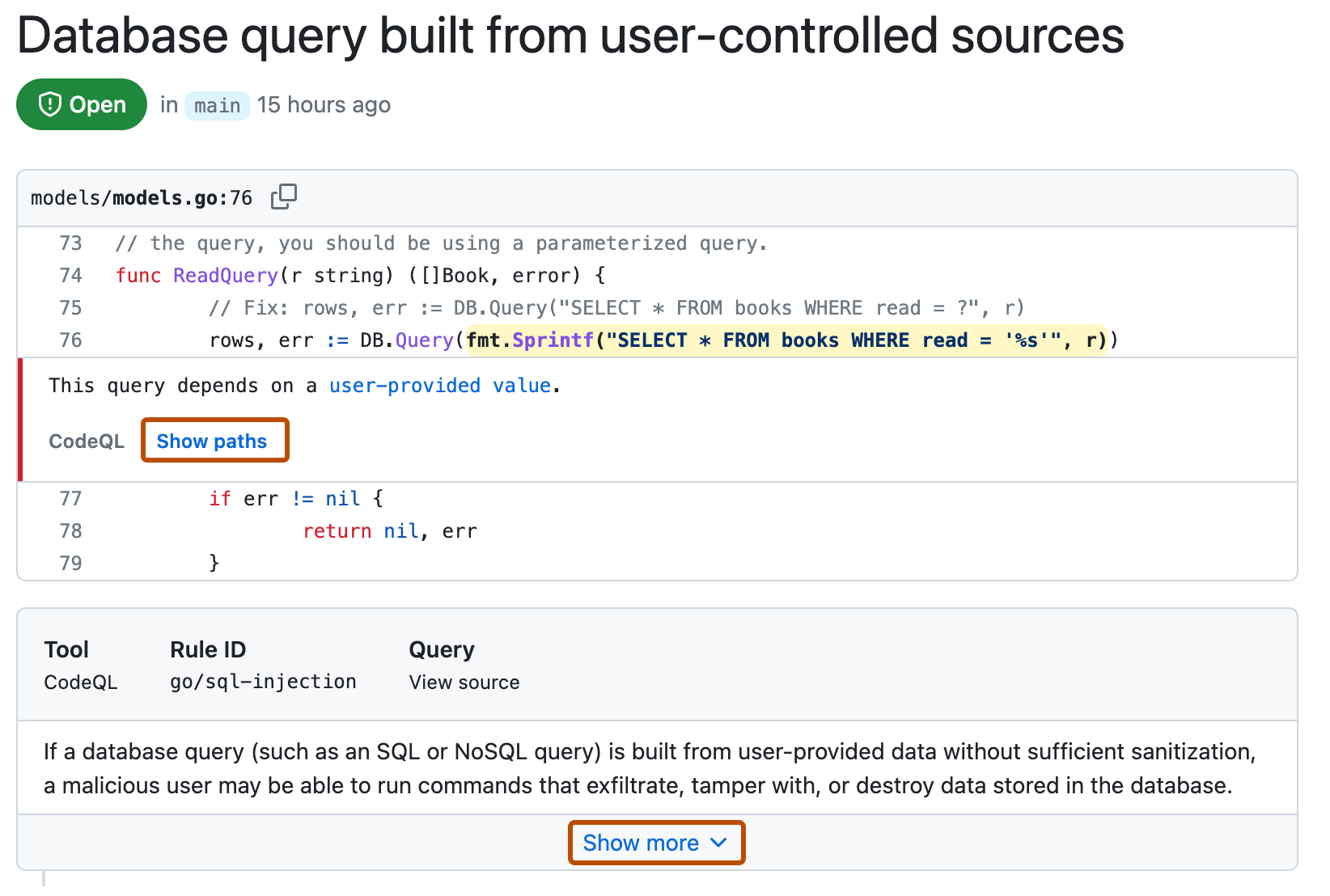
Algunas alertas identifican varias rutas de acceso a través del código que podrían desencadenar la misma vulnerabilidad. Cuando una alerta tiene varias rutas de acceso, aparece una lista desplegable encima de la vista ruta de acceso que muestra el número de rutas de acceso disponibles. Puede seleccionar cada ruta de acceso en la lista desplegable para revisarla individualmente.

-
Las alertas del CodeQL análisis incluyen una descripción del problema. Haga clic en Mostrar más para obtener instrucciones sobre cómo corregir el código.
-
Opcionalmente, asigna la alerta a alguien para corregirla mediante el control Usuarios asignados que se muestra a la derecha, consulte Asignación de alertas.


Para más información, consulta Acerca de las alertas de análisis de código.
Nota:
Puede ver información sobre cuándo code scanning se ejecutó por última vez el análisis en la página de estado de la herramienta. Para más información, consulta Usar la página de estado de la herramienta para el examen de código.
Visualización de métricas para CodeQL alertas de solicitudes de incorporación de cambios para una organización
En el caso de las alertas de code scanning del análisis de CodeQL, puede usar información general sobre seguridad para ver cómo se está comportando CodeQL en las solicitudes de incorporación de cambios en repositorios en los que tiene acceso de escritura en toda su organización, y para identificar repositorios en los que puede que necesite tomar medidas. Para más información, consulta Métricas de alertas de pull request de CodeQL.
Filtrado de code scanning alertas
Puede filtrar las alertas que se muestran en la code scanning vista de alertas. Esto es útil si hay muchas alertas, ya que puedes enfocarte en un tipo particular de estas. Hay algunos filtros predefinidos y rangos de palabras clave que puedes utilizar para refinar la lista de alertas que se muestran.
Al seleccionar una palabra clave de una lista desplegable o al escribir una palabra clave en el campo de búsqueda, solo se muestran los valores con los resultados. Esto hace que sea más fácil evitar configurar filtros que no encuentran resultados.

Si escribe varios filtros, en la vista se mostrarán alertas que coincidan con todos ellos. Por ejemplo, is:closed severity:high branch:main solo mostrará alertas de gravedad alta cerradas que están presentes en la rama main. La excepción son los filtros relacionados con las referencias (ref, branch y pr): is:open branch:main branch:nextmostrará las alertas abiertas tanto de la rama main como de la rama next.
Tenga en cuenta que si ha filtrado las alertas en una rama no predeterminada, pero las mismas alertas existen en la rama predeterminada, en la página de alertas de cualquier alerta se seguirá reflejando el estado de la alerta en la rama predeterminada, incluso si ese estado entra en conflicto con el de una rama no predeterminada. Por ejemplo, una alerta que aparece en la lista "Abrir" en el resumen de alertas para branch-x podría mostrar un estado de "Corregido" en la página de alertas, si ya se ha corregido en la rama predeterminada. Puede ver el estado de la alerta de la rama filtrada en la sección Ramas afectadas del lado derecho de la página de alertas.
Puede usar el prefijo tag en el filtro - para excluir los resultados con esa etiqueta. Por ejemplo, -tag:style solo muestra alertas que no tienen la etiqueta style.
Restringir los resultados únicamente al código de la aplicación
Puede usar el filtro "Solo alertas en el código de la aplicación" o la palabra clave autofilter:true y el valor para restringir a las alertas en el código de aplicación. Para obtener más información sobre los tipos de código que se etiquetan automáticamente como código no de la aplicación, consulta Acerca de las alertas de análisis de código.
Búsqueda de code scanning alertas
Puedes buscar la lista de alertas. Esto es útil si hay una gran cantidad de alertas en tu repositorio o si no sabes el nombre exacto de una alerta, por ejemplo. GitHub realiza la búsqueda de texto libre en:
- Nombre de la alerta
- Los detalles de la alerta (esto también incluye la información oculta de la vista de manera predeterminada en la sección desplegable Mostrar más).
| Búsqueda compatible | Ejemplo de sintaxis | Results |
|---|---|---|
| Búsqueda de palabra sencilla | injection | Devuelve todas las alertas que contienen la palabra injection |
| Búsqueda de palabras múltiples | sql injection | Devuelve todas las alertas que contienen sql o injection |
| Búsqueda de coincidencias exactas (use comillas dobles) | "sql injection" | Devuelve todas las alertas que contienen la frase exacta sql injection |
| Búsqueda con OR | sql OR injection | Devuelve todas las alertas que contienen sql o injection |
| Búsqueda AND | sql AND injection | Devuelve todas las alertas que contienen las palabras sql y injection |
Sugerencia
- La búsuqeda de palabras múltiples es equivalente auna búsqueda con OR.
- La búsqueda con AND devolverá resultados en los que los términos de la búsqueda se encuentren en cualquier parte, en cualquier orden en el nombre o los detalles de la alerta.
- En GitHub, navegue hasta la página principal del repositorio.
- En el nombre del repositorio, haga clic en la Security and quality pestaña . Si no puede ver la pestaña " Security and quality", seleccione el menú desplegable y, a continuación, haga clic en Security and quality.
- En la barra lateral de la izquierda, haz clic en Code scanning.
- A la derecha de los menús desplegables Filtros, escriba las palabras clave que se van a buscar en el cuadro de búsqueda de texto libre.

- Presione Entrar. La lista de alertas contendrá las alertas abiertas code scanning que coinciden con los criterios de búsqueda.
Auditoría de respuestas a alertas de code scanning
Puedes auditar las acciones realizadas en respuesta a las alertas de code scanning mediante las herramientas de GitHub. Para más información, consulta Auditoría de alertas de seguridad.