探索代码中的安全风险
可以使用选项卡上的不同视图 Security and quality 浏览代码中的安全风险。
- 概述: 用于探索安全警报的检测、修正和预防趋势。
- 风险: 用于跨所有警报类型浏览存储库的当前状态。
- 评估: 用于探索存储库的当前状态,专门用于机密泄漏
- 调查结果: 用于更详细地浏览code scanning或Dependabotsecret scanning警报。
这些视图提供了数据和筛选器,以便:
- 评估存储在所有仓库中的代码的安全风险状况。
- 确定需要解决的影响最大的漏洞。
- 监视修正潜在漏洞的进度。
- 了解组织如何受到机密泄漏和泄露的影响。
- 导出当前选择的数据以供进一步分析和报告。
查看代码中的组织级别安全风险
-
在 GitHub 上,导航到组织的主页面。
-
在组织名称下,单击 Security and quality 该选项卡。
-
若要在边栏中显示“Security risk”视图,请单击 “Risk”****。
-
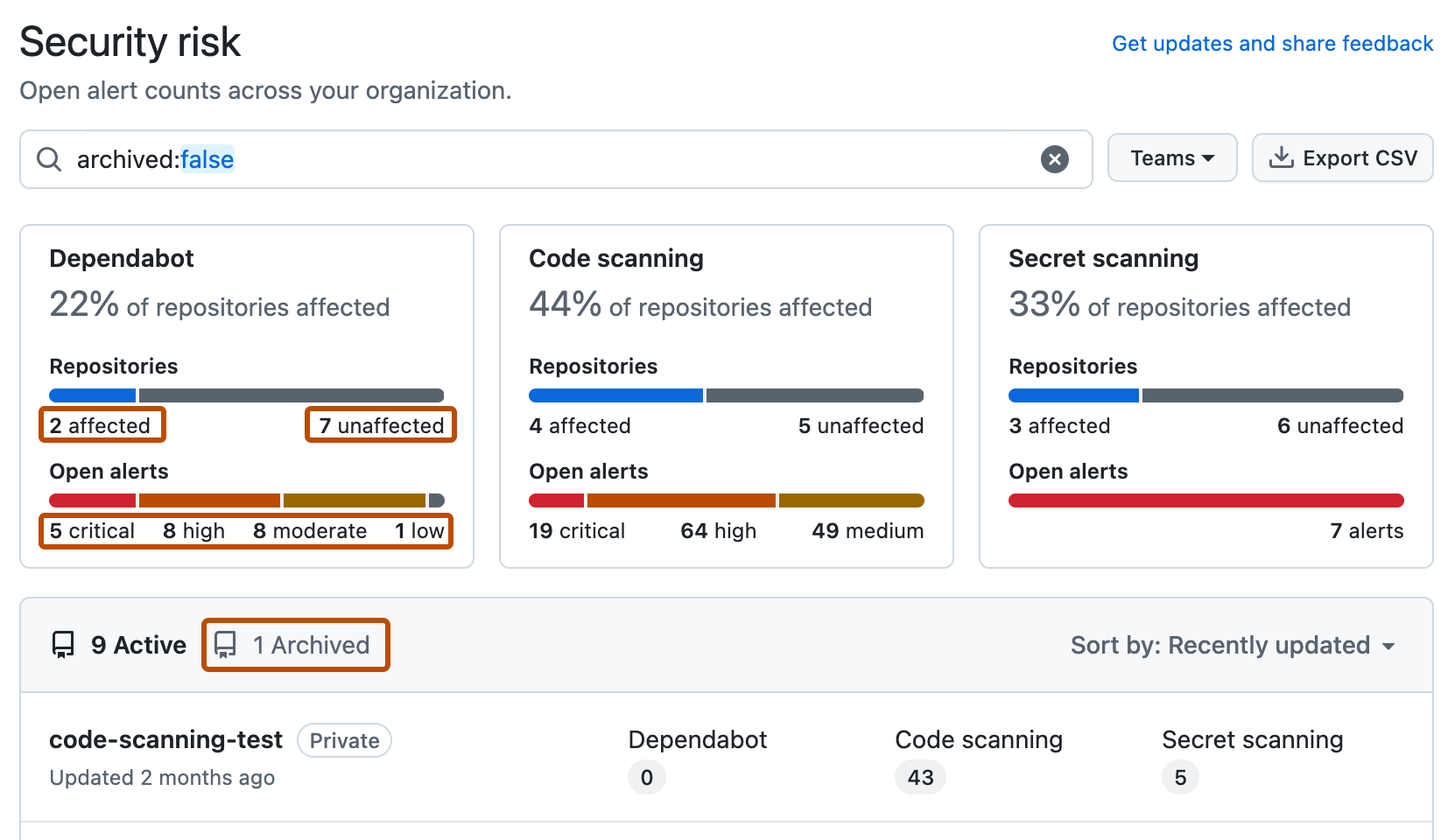
使用页面摘要中的选项筛选结果以显示要评估的存储库。 页面上显示的存储库和指标列表会自动更新,以匹配当前选择。 有关筛选的详细信息,请参阅 在安全概述中筛选警报。
- 使用“团队”下拉菜单以仅显示由一个或多个团队拥有的存储库的信息。
- 对于任何功能,单击标头中的“受影响的编号”或“不受影响的编号”,以仅显示具有或不具有该类型的未决警报的存储库。
- 单击标头中“打开警报”的任何说明,以仅显示具有该类型和类别的警报的存储库。 例如,单击“1 关键”以显示存储库中 Dependabot 的关键警报。
- 在存储库列表顶部,单击“已存档的编号”,以仅显示已存档的存储库。
- 单击搜索框以向显示的存储库添加更多筛选器。
注意
The set of unaffected repositories includes all repositories without open alerts and also any repositories where the security feature is not enabled.
-
(可选)使用左侧的边栏更详细地浏览特定安全功能的警报。 在每个页面上,都可使用特定于相应功能的筛选器来优化搜索。
-
(可选)使用 “导出 CSV”按钮下载页面上当前显示的数据的 CSV 文件,以便进行安全研究和深入数据分析。 有关详细信息,请参阅“从安全概览导出数据”。

注意
摘要视图(“Overview”、“Coverage”和“Risk”)仅显示默认警报的数据。 Secret scanning 忽略目录的警报和非提供程序的警报都从这些视图中省略。 因此,单个警报视图可能包括大量打开和关闭的警报。
查看代码中的企业级别安全风险
可以查看企业中跨组织的安全警报数据。
提示
可以使用搜索字段中的 owner 筛选器按组织筛选数据。 有关详细信息,请参阅“在安全概述中筛选警报”。
-
导航至 GitHub Enterprise Cloud。
-
在 GitHub 的右上角,单击你的个人资料图片。
-
根据环境,单击“ 企业”,或单击“ 企业 ”,然后单击要查看的企业。
-
在页面顶部,单击 Security and quality 该选项卡。
-
若要显示“安全风险”视图,请在边栏中单击“ 风险”。
-
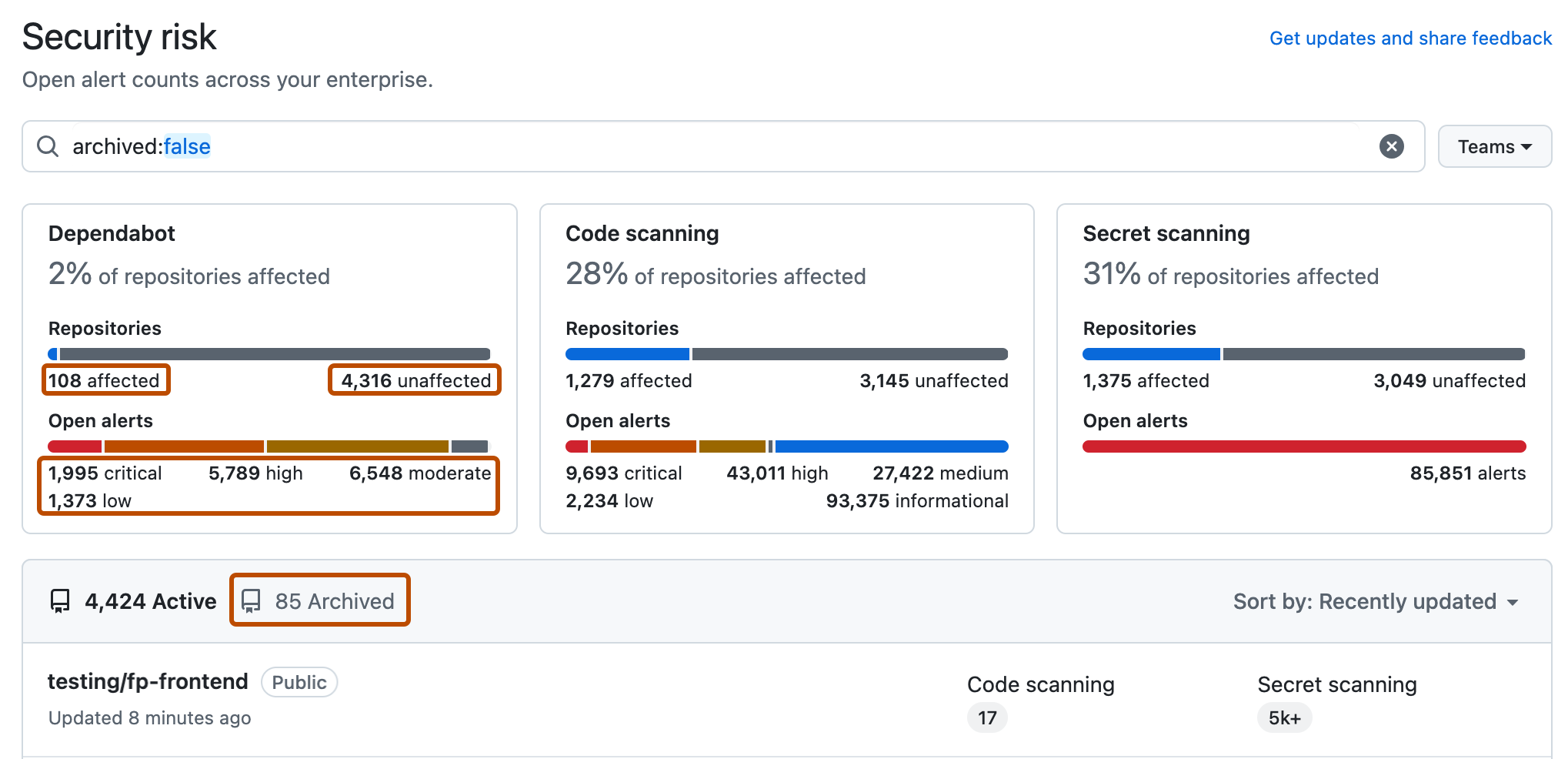
使用页面摘要中的选项筛选结果以显示要评估的存储库。 页面上显示的存储库和指标列表会自动更新,以匹配当前选择。 有关筛选的详细信息,请参阅 在安全概述中筛选警报。
- 使用“团队”下拉菜单以仅显示由一个或多个团队拥有的存储库的信息。
- 对于任何功能,单击标头中的“受影响的编号”或“不受影响的编号”,以仅显示具有或不具有该类型的未决警报的存储库。
- 单击标头中“打开警报”的任何说明,以仅显示具有该类型和类别的警报的存储库。 例如,单击“1 关键”以显示存储库中 Dependabot 的关键警报。
- 在存储库列表顶部,单击“已存档的编号”,以仅显示已存档的存储库。
- 单击搜索框以向显示的存储库添加更多筛选器。
注意
The set of unaffected repositories includes all repositories without open alerts and also any repositories where the security feature is not enabled.
-
(可选)使用左侧的边栏更详细地浏览特定安全功能的警报。 在每个页面上,都可使用特定于相应功能的筛选器来优化搜索。
-
(可选)使用“ 导出 CSV ”按钮下载页面上当前显示的数据的 CSV 文件,以便进行安全研究和深入数据分析。 有关详细信息,请参阅“从安全概览导出数据”。

注意
摘要视图(“Overview”、“Coverage”和“Risk”)仅显示默认警报的数据。 Secret scanning 忽略目录的警报和非提供程序的警报都从这些视图中省略。 因此,单个警报视图可能包括大量打开和关闭的警报。
后续步骤
评估安全风险后,您即可创建一个安全活动,与开发人员协作解决警报。 有关大规模修复安全警报的信息,请参阅 创建和管理安全活动 和 开展安全计划以大规模解决警报问题。