Anyone with read permission for a repository can see code scanning annotations on pull requests. For more information, see Triaging code scanning alerts in pull requests.
Viewing the alerts for a repository
You need write permission to view a summary of all the alerts for a repository on the Security tab.
By default, the code scanning alerts page is filtered to show alerts for the default branch of the repository only.
-
在 GitHub 上,导航到存储库的主页面。
-
在仓库名称下,单击 “Security”****。 如果看不到“Security”选项卡,请选择 下拉菜单,然后单击“Security”********。

-
在左边栏中,单击“ Code scanning”****。
-
Optionally, use the free text search box or the dropdown menus to filter alerts. For example, you can filter by the tool that was used to identify alerts.
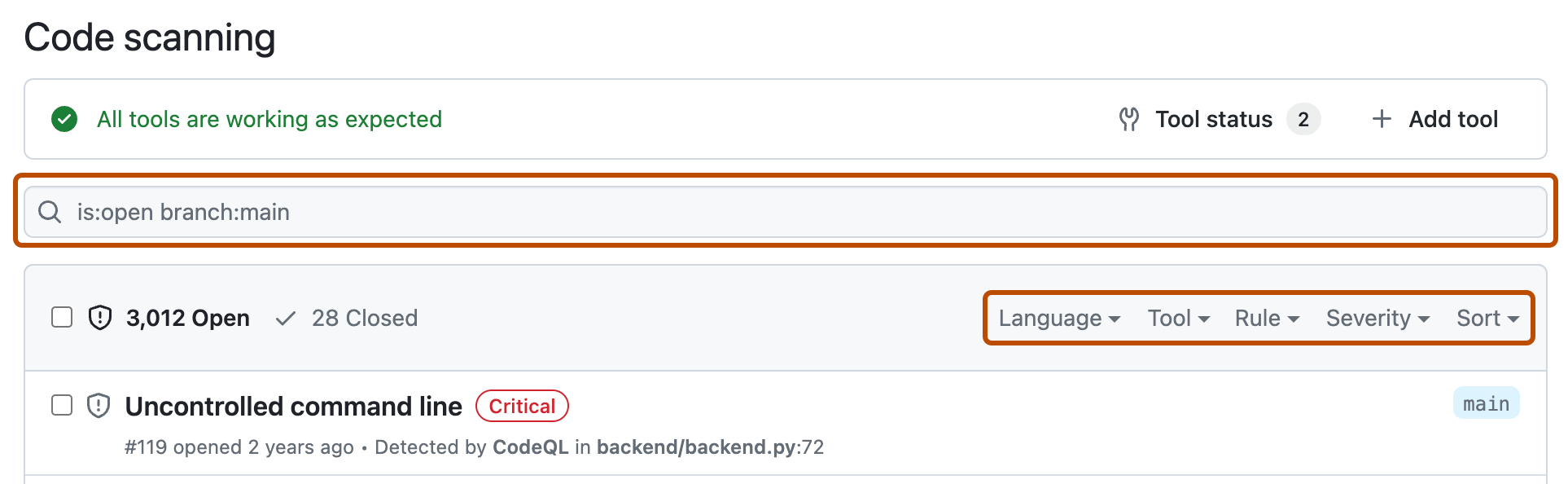
-
在“Code scanning”下,单击要探索的警报以显示详细警报页。 警报页面上的状态和详细信息仅反映存储库默认分支上的警报状态,即使警报存在于其他分支中也是如此。 可以在警报页右侧的“受影响的分支”部分查看非默认分支上的警报状态。 如果默认分支中不存在警报,则警报的状态将显示为“在拉取请求中”或“在分支中”,并将变为灰色。 “开发”部分显示将修复警报的链接分支和拉取请求。****
-
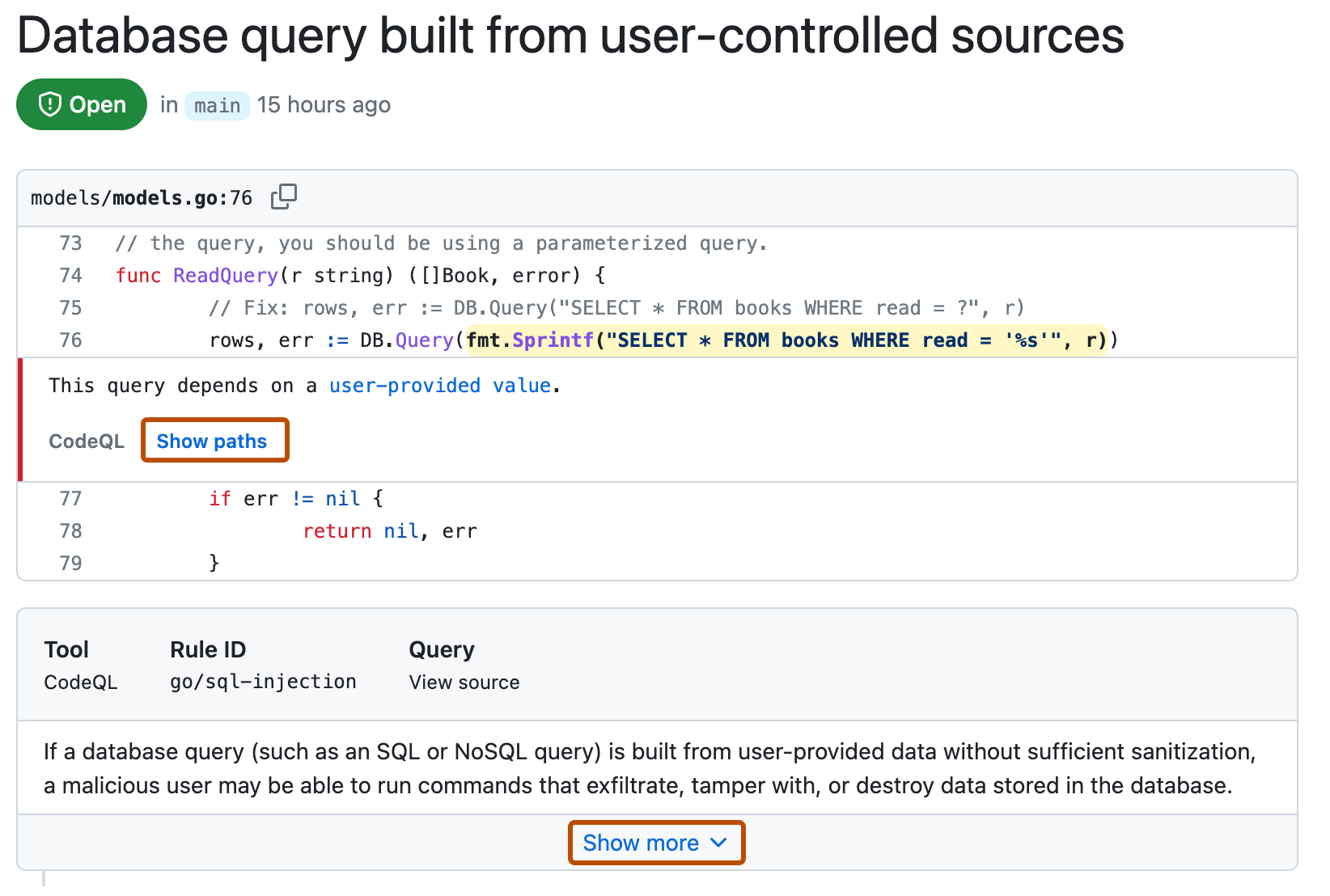
Optionally, if the alert highlights a problem with data flow, click Show paths to display the path from the data source to the sink where it's used.
-
Alerts from CodeQL analysis include a description of the problem. Click Show more for guidance on how to fix your code.
-
(可选)将警报分配给某人以使用右侧显示的“Assignees”控件进行修复,请参阅分配警报****。


For more information, see 关于代码扫描警报.
注意
You can see information about when code scanning analysis last ran on the tool status page. For more information, see 关于代码扫描的工具状态页.
Viewing metrics for CodeQL pull request alerts for an organization
For code scanning alerts from CodeQL analysis, you can use security overview to see how CodeQL is performing in pull requests in repositories where you have write access across your organization, and to identify repositories where you may need to take action. For more information, see Viewing metrics for pull request alerts.
Filtering code scanning alerts
You can filter the alerts shown in the code scanning alerts view. This is useful if there are many alerts as you can focus on a particular type of alert. There are some predefined filters and a range of keywords that you can use to refine the list of alerts displayed.
When you select a keyword from either a drop-down list, or as you enter a keyword in the search field, only values with results are shown. This makes it easier to avoid setting filters that find no results.

If you enter multiple filters, the view will show alerts matching all these filters. For example, is:closed severity:high branch:main will only display closed high-severity alerts that are present on the main branch. The exception is filters relating to refs (ref, branch and pr): is:open branch:main branch:next will show you open alerts from both the main branch and the next branch.
请注意,如果你已筛选掉非默认分支上的警报,但默认分支上存在相同的警报,则任何给定警报的警报页仍将仅反映默认分支上的警报状态,即使该状态与非默认分支的状态冲突也是如此。 例如,如果 branch-x 的警报摘要中的“未解决”列表中显示的警报已在默认分支上修复,该警报可能会在警报页上显示“已修复”状态。 可在警报页右侧的“受影响的分支”部分查看筛选的分支的警报状态。
You can prefix the tag filter with - to exclude results with that tag. For example, -tag:style only shows alerts that do not have the style tag.
Restricting results to application code only
You can use the "Only alerts in application code" filter or autofilter:true keyword and value to restrict results to alerts in application code. For more information about the types of code that are automatically labeled as not application code, see 关于代码扫描警报.
Searching code scanning alerts
You can search the list of alerts. This is useful if there is a large number of alerts in your repository, or if you don't know the exact name for an alert for example. GitHub performs the free text search across:
- The name of the alert
- The alert details (this also includes the information hidden from view by default in the Show more collapsible section)
| Supported search | Syntax example | Results |
|---|---|---|
| Single word search | injection | Returns all the alerts containing the word injection |
| Multiple word search | sql injection | Returns all the alerts containing sql or injection |
| Exact match search (use double quotes) | "sql injection" | Returns all the alerts containing the exact phrase sql injection |
| OR search | sql OR injection | Returns all the alerts containing sql or injection |
| AND search | sql AND injection | Returns all the alerts containing both words sql and injection |
提示
- The multiple word search is equivalent to an OR search.
- The AND search will return results where the search terms are found anywhere, in any order in the alert name or details.
- 在 GitHub 上,导航到存储库的主页面。
- 在仓库名称下,单击 “Security”****。 如果看不到“Security”选项卡,请选择 下拉菜单,然后单击“Security”********。
- 在左边栏中,单击“ Code scanning”****。
- To the right of the Filters drop-down menus, type the keywords to search for in the free text search box.
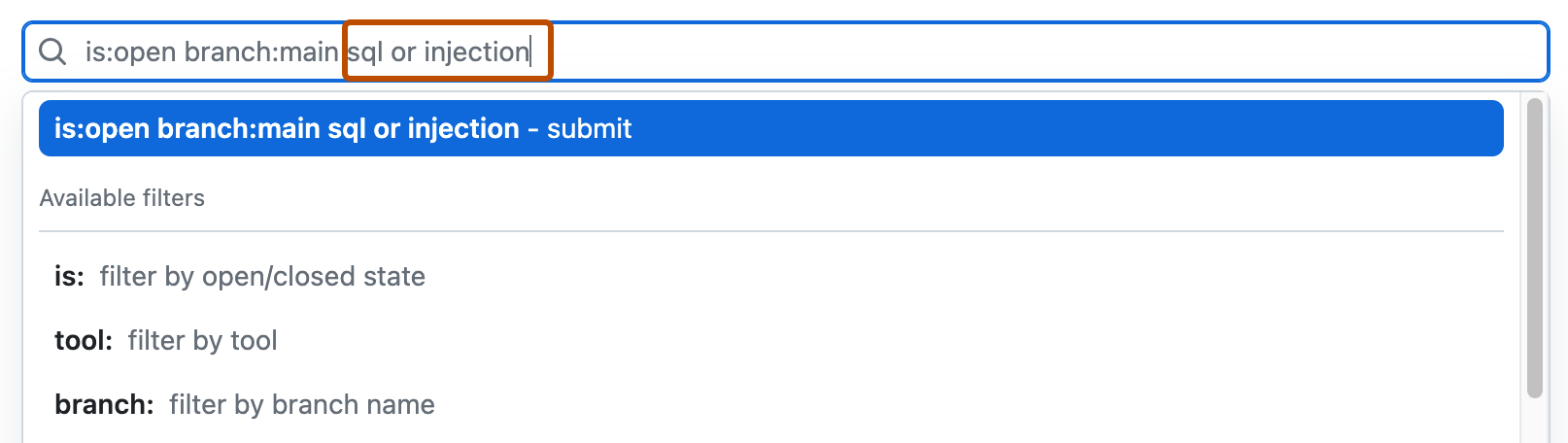
- Press return. The alert listing will contain the open code scanning alerts matching your search criteria.

Auditing responses to code scanning alerts
可以使用 GitHub 工具审核为响应code scanning警报而执行的操作。 有关详细信息,请参阅“审核安全警报”。