Les modèles personnalisés sont des modèles définis par l’utilisateur que vous pouvez utiliser pour identifier les secrets qui ne sont pas détectés par les modèles par défaut pris en charge par secret scanning. Pour plus d’informations, consultez « Définition de modèles personnalisés pour l’analyse des secrets ».
Au niveau de l’entreprise, seul le créateur d’un modèle personnalisé peut le modifier et l’utiliser dans un essai à blanc. Il n’existe aucune restriction similaire pour la modification de modèles personnalisés au niveau du référentiel et de l’organisation.
Modification d’un modèle personnalisé
Lorsque vous enregistrez une modification dans un modèle personnalisé, cela ferme tous les Alertes de détection de secrets éléments créés à l’aide de la version précédente du modèle.
-
Accédez à l’emplacement où le modèle personnalisé a été créé. Un modèle personnalisé peut être créé dans un compte d’organisation ou d’entreprise ou dans un dépôt.
- Pour un référentiel ou une organisation, affichez les paramètres « Advanced Security » du référentiel ou de l’organisation où le modèle personnalisé a été créé. Pour plus d’informations, consultez Définition d’un modèle personnalisé pour un référentiel ou Définition d’un modèle personnalisé pour une organisation.
- Pour une entreprise, sous « Stratégies », affichez la zone « Advanced SecurityCode security », puis cliquez sur Fonctionnalités de sécurité. Pour plus d’informations, consultez Définition d’un modèle personnalisé pour un compte d’entreprise.
-
Sous « Modèles personnalisés », à droite du modèle personnalisé que vous souhaitez modifier, cliquez sur .
-
Quand vous êtes prêt à tester votre modèle personnalisé modifié, pour identifier les correspondances sans créer d’alertes, cliquez sur Enregistrer et effectuer un test.
-
Après avoir examiné et testé vos modifications, cliquez sur Publier les modifications.
-
Vous pouvez éventuellement activer la protection des poussées (push) pour votre modèle personnalisé, en cliquant sur Activer.
Remarque
- La protection des envois (push) pour les modèles personnalisés s’applique uniquement aux référentiels sur lesquels l’secret scanning est activée comme protection des envois (push). Pour plus d’informations sur l’activation de la protection d’envoi (push), consultez À propos de la protection lors du push.
- L’activation de la protection des envois (push) pour les modèles personnalisés courants peut entraîner des perturbations pour les contributeurs.
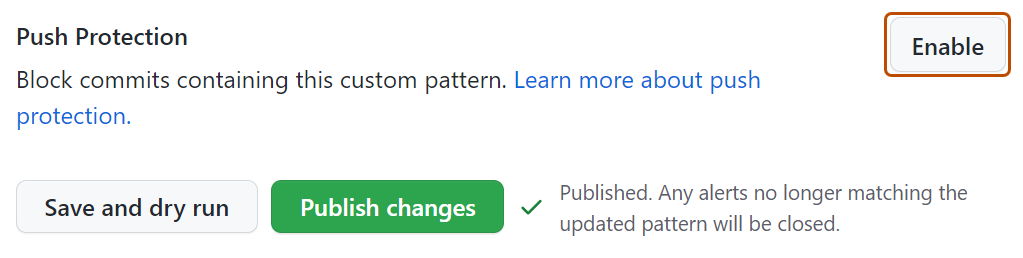
-
Si vous souhaitez désactiver la protection des envois (push) pour votre modèle personnalisé (facultatif), cliquez sur Désactiver.
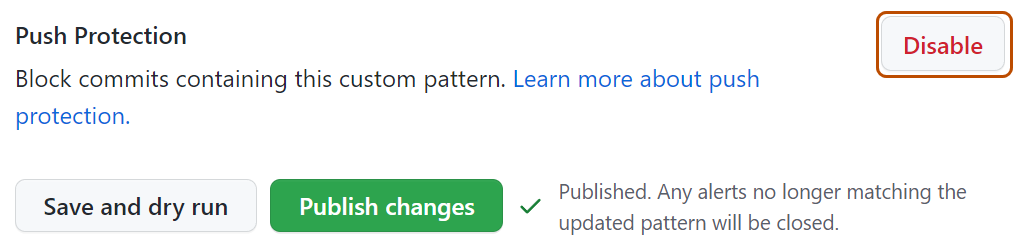


Suppression d’un modèle personnalisé
Lorsque vous supprimez un modèle personnalisé, GitHub vous avez la possibilité de fermer le Alertes de détection de secrets associé au modèle ou de conserver ces alertes.
- Accédez à l’emplacement où le modèle personnalisé a été créé. Un modèle personnalisé peut être créé dans un compte d’organisation ou d’entreprise ou dans un dépôt.
- Pour un référentiel ou une organisation, affichez les paramètres « Advanced Security » du référentiel ou de l’organisation où le modèle personnalisé a été créé. Pour plus d’informations, consultez Définition d’un modèle personnalisé pour un référentiel ou Définition d’un modèle personnalisé pour une organisation.
- Pour une entreprise, sous « Stratégies », affichez la zone « Advanced SecurityCode security », puis cliquez sur Fonctionnalités de sécurité. Pour plus d’informations, consultez Définition d’un modèle personnalisé pour un compte d’entreprise.
- À droite du modèle personnalisé que vous souhaitez supprimer, cliquez sur .
- Passez en revue la confirmation et sélectionnez une méthode pour gérer les alertes ouvertes relatives au modèle personnalisé.
- Cliquez sur Oui, supprimer ce modèle.
Si vous choisissez de fermer les alertes lors de la suppression d’un modèle personnalisé, vous devez savoir que le processus de suppression se produit de manière asynchrone en arrière-plan. Pour les modèles personnalisés qui ont généré un volume élevé d’alertes (milliers ou plus), le processus de suppression peut prendre plusieurs minutes à plusieurs heures. Vous pouvez continuer à travailler pendant la fin du processus.
Activation de la protection des poussées pour un modèle personnalisé
Vous pouvez activer secret scanning comme protection Push pour les modèles personnalisés stockés au niveau de l’entreprise, de l’organisation ou du référentiel.
Activation de la protection des poussées pour un modèle personnalisé stocké dans une entreprise
Remarque
- Pour rendre possible la protection des envois (push) dans le cadre des modèles personnalisés, l’secret scanning doit être activée comme protection des envois (push) au niveau de l’entreprise.
- L’activation de la protection des envois (push) pour les modèles personnalisés courants peut entraîner des perturbations pour les contributeurs.
Avant d’activer la protection des poussées pour un modèle personnalisé au niveau de l’entreprise, vous devez également tester vos modèles personnalisés en exécutant des tests à blanc. Vous pouvez uniquement effectuer un essai à blanc sur les dépôts auxquels vous bénéficiez d’un accès administrateur. Si un propriétaire d’entreprise souhaite pouvoir effectuer des essais à blanc sur n’importe quel dépôt d’une organisation, le rôle propriétaire d’organisation doit lui être attribué. Pour plus d’informations, consultez « Gestion de votre rôle dans une organisation appartenant à votre entreprise ».
-
Accédez à votre entreprise. Par exemple, depuis la page Entreprises sur GitHub.com.
-
En haut de la page, cliquez sur Stratégies.
-
Sous » Politiques », cliquez sur Advanced SecurityCode security.
-
Sous « »,Advanced SecurityCode security cliquez sur Fonctionnalités de sécurité.
-
Sous « Secret scanning », sous « Modèles personnalisés », cliquez sur pour le modèle qui vous intéresse.
Remarque
Au niveau de l’entreprise, vous pouvez uniquement modifier et activer la protection des poussées pour les modèles personnalisés que vous avez créés.
-
Pour activer la protection des poussées pour votre modèle personnalisé, faites défiler vers le bas jusqu’à « Protection des poussées » et cliquez sur Activer.
Remarque
L'option permettant d'activer la protection push n'est visible que pour les modèles publiés.
Activer secret scanning en tant que protection de poussée dans une organisation pour un modèle personnalisé
Avant d’activer la protection Push pour un modèle personnalisé au niveau de l’organisation, vous devez vous assurer que secret scanning est activé pour les dépôts que vous souhaitez analyser dans votre organisation. Pour activer secret scanning sur tous les dépôts de votre organisation, consultez Gestion des paramètres de sécurité et d'analyse pour votre organisation.
-
Dans le coin supérieur droit de GitHub, cliquez sur votre photo de profil, puis sur Vos organisations.
-
Sélectionnez une organisation en cliquant dessus.
-
Sous le nom de votre organisation, cliquez sur Settings. Si vous ne voyez pas l’onglet « Paramètres », sélectionnez le menu déroulant , puis cliquez sur Paramètres.

-
Dans la section « Sécurité » de la barre latérale, sélectionnez le Advanced Security menu déroulant, puis cliquez sur Global settings.
-
Sous « Modèles personnalisés », cliquez pour le modèle d’intérêt.
-
Pour activer la protection des poussées pour votre modèle personnalisé, faites défiler vers le bas jusqu’à « Protection des poussées » et cliquez sur Activer.
Remarque
- L'option permettant d'activer la protection push n'est visible que pour les modèles publiés.
- La protection push pour les modèles personnalisés s'applique uniquement aux dépôts de votre organisation pour lesquels l'option secret scanning est activée en tant que protection push.
- L’activation de la protection des envois (push) pour les modèles personnalisés courants peut entraîner des perturbations pour les contributeurs.

Activer secret scanning en tant que protection de poussée dans un dépôt pour un schéma personnalisé
Avant d’activer la protection des poussées pour un modèle personnalisé au niveau du dépôt, vous devez définir le modèle personnalisé pour le dépôt et le tester dans le dépôt. Pour plus d’informations, consultez « Définition de modèles personnalisés pour l’analyse des secrets ».
-
Sur GitHub, accédez à la page principale du référentiel.
-
Sous le nom de votre référentiel, cliquez sur Paramètres. Si vous ne voyez pas l’onglet « Paramètres », sélectionnez le menu déroulant , puis cliquez sur Paramètres.

-
Dans la section « Sécurité » de la barre latérale, cliquez sur Advanced Security.
-
Sous « Modèles personnalisés », sous Secret Protection, cliquez pour le modèle d’intérêt.
-
Pour activer la protection des poussées pour votre modèle personnalisé, faites défiler vers le bas jusqu’à « Protection des poussées » et cliquez sur Activer.
Remarque
L'option permettant d'activer la protection push n'est visible que pour les modèles publiés.
