Poser des questions sur les alertes GitHub Copilot Chatcode scanning
Avec une GitHub Copilot Enterprise licence, vous pouvez demander Discussion avec Copilot de l’aide pour mieux comprendre les alertes de sécurité, notamment code scanning les alertes, dans les dépôts de votre organisation. Pour plus d’informations, consultez « Poser des questions à GitHub Copilot sur GitHub ».
Génération de correctifs suggérés pour les alertes code scanning
GitHub Copilot fixation automatique peut générer des correctifs pour les alertes identifiées par code scanning l’analyse. La plupart des CodeQL types d’alertes sont pris en charge. Consultez « À propos de Copilot Autofix pour l’analyse du code ».
Remarque
Vous n’avez pas besoin d’un abonnement à GitHub Copilot pour utiliser GitHub Copilot fixation automatique. Copilot correction automatique est disponible pour tous les référentiels publics sur GitHub.com, ainsi que pour les référentiels internes ou privés appartenant à des organisations et entreprises disposant d’une licence pour GitHub Code Security.
- Sur GitHub, accédez à la page principale du référentiel.
- Sous le nom du référentiel, cliquez sur l’onglet Security and quality . Si vous ne voyez pas l’onglet « Security and quality », sélectionnez le menu déroulant, puis cliquez sur Security and quality.
- Dans la barre latérale gauche, cliquez sur Code scanning.
- Cliquez sur le nom d'une alerte.
- Si Copilot correction automatique vous pouvez suggérer un correctif, en haut de la page, cliquez sur Générer un correctif.
- Une fois le correctif suggéré généré, en bas de la page, vous pouvez cliquer sur Créer une PR avec le correctif pour générer automatiquement une pull request avec le correctif suggéré. Une nouvelle branche est créée à partir de la branche par défaut, le correctif généré est validé et une pull request de brouillon est créée. Vous pouvez tester et modifier le correctif suggéré comme vous le feriez pour tout autre correctif.
Vous pouvez également utiliser l'API Autofix pour les points de terminaison des alertes historiques afin de générer, d'obtenir et de valider des correctifs suggérés.
- Créer un autofix pour une alerte d'analyse de code
- Obtenir l'état d'un autofix pour une alerte d'analyse de code
- Effectuer une correction automatique pour une alerte par balayage de code
Copilot correction automatique pour les alertes de code scanning ne pourra pas générer un correctif pour chaque alerte dans toutes les situations. La fonctionnalité fonctionne sur la base du meilleur effort possible et son succès n’est pas garanti à 100 %. Pour plus d’informations sur les limites des corrections générées automatiquement, voir Limites des suggestions.
Affectation d’alertes à Agent cloud Copilot
Remarque
Cette option est actuellement en préversion publique et peut être modifiée. Agent cloud Copilot doit être disponible dans le référentiel.
Vous pouvez attribuer Copilot pour appliquer une correction automatique. Copilot analyse l’alerte de balayage du code, crée un plan de correction et implémente les modifications de code nécessaires dans une pull request.
- Sur GitHub, accédez à la page principale du référentiel.
- Sous le nom du référentiel, cliquez sur l’onglet Security and quality . Si vous ne voyez pas l’onglet « Security and quality », sélectionnez le menu déroulant, puis cliquez sur Security and quality.
- Dans la barre latérale gauche, cliquez sur Code scanning.
- Cliquez sur le nom d'une alerte.
- Si un correctif automatique n’a pas été généré et Copilot correction automatique peut suggérer un correctif, en haut de la page, cliquez sur Générer le correctif.
- Dans le menu de droite, cliquez sur Assignees.
- Sélectionnez « Copilot ».
Dans les trente prochaines secondes, Copilot ouvrira une pull request pour traiter l’alerte et inclura un résumé des correctifs ainsi que des détails sur les modifications apportées. Une fois créée, la pull request est affichée dans la section « Développement ».
Résolution manuelle d’une alerte
Toute personne disposant d’une autorisation d’écriture pour un dépôt peut corriger une alerte en commitant une correction dans le code. Si le référentiel a code scanning planifié l’exécution sur les pull requests, il est préférable de soumettre une pull request avec votre correction. Cela déclenche l’analyse des modifications et teste code scanning que votre correctif n’introduit aucun nouveau problème. Pour plus d’informations, consultez « Triage des alertes d’analyse du code dans les demandes de tirage (pull request) ».
Pour suivre le travail de correction dans le flux de travail de votre équipe sans quitter GitHub, vous pouvez lier des alertes à des problèmes. Consultez « Liaison d’alertes d’analyse de code aux problèmes de GitHub ».
Vous pouvez utiliser la recherche en texte libre ou les filtres pour afficher un sous-ensemble d’alertes, puis marquer toutes les alertes correspondantes comme fermées.
Les alertes peuvent être corrigées dans une branche, mais pas dans une autre. Vous pouvez utiliser le filtre « branche », dans le récapitulatif des alertes, pour vérifier si une alerte est corrigée dans une branche particulière.

Veuillez noter que si vous avez filtré les alertes sur une branche autre que celle par défaut, mais que les mêmes alertes existent sur la branche par défaut, la page d’une alerte donnée reflétera uniquement l’état de l’alerte sur la branche par défaut, même si cet état est en conflit avec celui d’une branche autre que celle par défaut. Par exemple, une alerte qui apparaît dans la liste « Ouvertes » dans le résumé des alertes de la branch-x peut présenter l’état « Résolue » sur la page de l’alerte, si l’alerte est déjà résolue sur la branche par défaut. Vous pouvez consulter l’état de l’alerte pour la branche filtrée dans la section Branches affectées sur le côté droit de la page de l’alerte.
Remarque
Si vous exécutez code scanning en utilisant plusieurs configurations, la même alerte est parfois générée par plusieurs configurations. Sauf si vous exécutez régulièrement toutes les configurations, vous pouvez voir des alertes qui sont corrigées dans une configuration, mais pas dans une autre. Ces configurations et alertes obsolètes peuvent être supprimées d’une branche. Pour plus d'informations, consultez Supprimer les configurations et alertes obsolètes d'une branche.
Rejeter les alertes
Il existe deux façons de fermer une alerte. Vous pouvez résoudre le problème dans le code ou ignorer l’alerte.
Le rejet d'une alerte est un moyen de fermer une alerte qui, selon vous, ne doit pas être corrigée. Par exemple, dans le cas d’une erreur présente dans du code utilisé uniquement à des fins de test, ou quand l’effort de correction de l’erreur est supérieur à l’avantage potentiel que représente l’amélioration du code. Vous pouvez ignorer les alertes des code scanning annotations dans le code ou dans la liste récapitulative sous l’onglet Security and quality.
Quand vous ignorez une alerte :
- Elle est ignorée dans toutes les branches.
- L’alerte est supprimée du nombre d’alertes actuel pour votre projet.
- L’alerte est déplacée vers la liste « Fermées » dans le récapitulatif des alertes. Vous pouvez la rouvrir depuis cet endroit, si nécessaire.
- La raison pour laquelle vous avez fermé l’alerte est enregistrée.
- Si vous le souhaitez, vous pouvez commenter un rejet afin d'enregistrer le contexte du rejet d'une alerte.
- Prochaine exécution code scanning , le même code ne génère pas d’alerte.
Pour rejeter des alertes :
- Sur GitHub, accédez à la page principale du référentiel.
- Sous le nom du référentiel, cliquez sur l’onglet Security and quality . Si vous ne voyez pas l’onglet « Security and quality », sélectionnez le menu déroulant, puis cliquez sur Security and quality.
- Dans la barre latérale gauche, cliquez sur Code scanning.
- Si vous souhaitez ignorer une alerte, il est important d’explorer l’alerte en premier, afin que vous puissiez choisir la bonne raison de l’ignorer. Cliquez sur l’alerte que vous voulez explorer.
- Passez en revue l’alerte, puis cliquez sur Ignorer l’alerte et choisissez, ou entrez, une raison de fermer l’alerte.

dismissed_comment pour le point de terminaison alerts/{alert_number}. Pour plus d’informations, consultez « Points de terminaison d’API REST pour l’analyse de codes ».
Si vous ignorez une alerte CodeQL que vous considérez comme un résultat faux positif, par exemple parce que le code utilise une bibliothèque d’assainissement qui n’est pas prise en charge, envisagez de contribuer au dépôt CodeQL et d’améliorer l’analyse. Pour plus d’informations sur CodeQL, consultez Contribution à CodeQL.
Ignorer plusieurs alertes à la fois
Si un projet a plusieurs alertes que vous souhaitez ignorer pour la même raison, vous pouvez les ignorer en bloc à partir du récapitulatif des alertes. En règle générale, vous souhaitez filtrer la liste, puis ignorer toutes les alertes correspondantes. Par exemple, vous souhaiterez peut-être ignorer toutes les alertes actuelles dans le projet qui ont été marquées pour une vulnérabilité CWE (Common Weakness Enumeration) particulière.
Rouvrir des alertes rejetées
Si vous rejetez une alerte mais réalisez ensuite que vous devez corriger l'alerte, vous pouvez la rouvrir et corriger le problème dans le code. Affichez la liste des alertes fermées, recherchez l'alerte, affichez-la, puis rouvrez-la. Vous pouvez ensuite corriger l'alerte de la même manière que n'importe quelle autre alerte.
Suppression des configurations et des alertes obsolètes d’une branche
Vous pouvez avoir plusieurs configurations d’analyse de code sur un seul dépôt. Lors de l’exécution, plusieurs configurations peuvent générer la même alerte. De plus, si les configurations sont exécutées selon des planifications différentes, les états d’alerte peuvent devenir obsolètes pour les configurations peu fréquentes ou obsolètes. Pour plus d’informations sur les alertes de plusieurs configurations, consultez À propos des alertes d’analyse du code.
-
Sur GitHub, accédez à la page principale du référentiel.
-
Sous le nom du référentiel, cliquez sur l’onglet Security and quality . Si vous ne voyez pas l’onglet « Security and quality », sélectionnez le menu déroulant, puis cliquez sur Security and quality.
-
Dans la barre latérale gauche, cliquez sur Code scanning.
-
Sous "Code scanning", cliquez sur une alerte code scanning.
-
Dans la section « Branches affectées » de la barre latérale, cliquez sur la branche souhaitée.
-
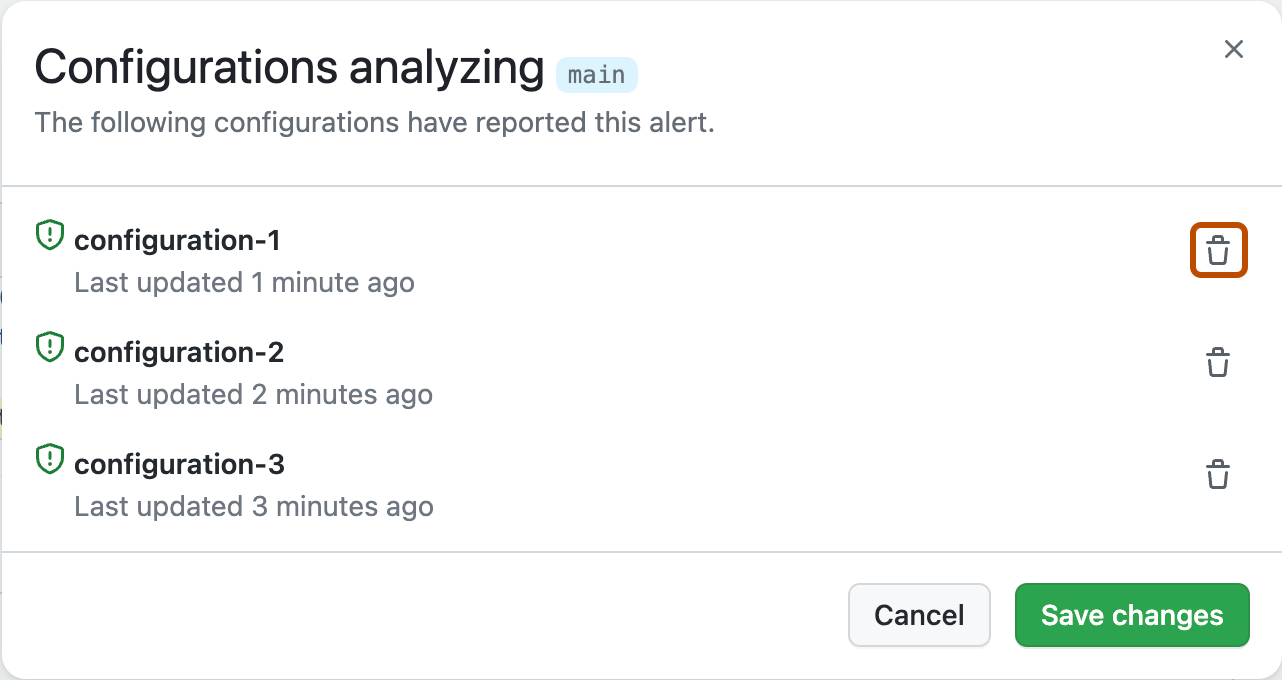
Dans la boîte de dialogue « Analyse des configurations », passez en revue les détails des configurations qui ont signalé cette alerte sur la branche sélectionnée. Pour supprimer une configuration indésirable pour la branche souhaitée, cliquez sur .
Si vous supprimez une configuration par erreur, cliquez sur Annuler pour éviter d’appliquer vos modifications.
-
Une fois que vous avez supprimé les configurations indésirables et confirmé que les configurations attendues s’affichent, cliquez sur Enregistrer les modifications.
Si vous enregistrez vos modifications après la suppression accidentelle d’une configuration, réexécutez la configuration pour mettre à jour l’alerte. Pour plus d’informations sur la réexécutation des configurations qui utilisent GitHub Actions, consultez Ré-exécution de workflows et de tâches.

Remarque
- Si vous supprimez toutes les code scanning configurations de la branche par défaut de votre référentiel, la branche par défaut reste dans la barre latérale « Branches affectées », mais elle ne sera pas analysée par les configurations.
- Si vous supprimez toutes les code scanning configurations d’une branche autre que la branche par défaut de votre référentiel, cette branche sera supprimée de la barre latérale « Branches affectées ».