About default setup
Default setup for code scanning is the quickest, easiest, most low-maintenance way to enable code scanning for your repository. Based on the code in your repository, default setup will automatically create a custom code scanning configuration. After enabling default setup, the code written in CodeQL-supported languages in your repository will be scanned:
- On each push to the repository's default branch, or any protected branch. For more information on protected branches, see 关于受保护分支.
- When creating or committing to a pull request based against the repository's default branch, or any protected branch, excluding pull requests from forks.
- On a weekly schedule.
注意
If no pushes and pull requests have occurred in a repository with default setup enabled for 6 months, the weekly schedule will be disabled to save your GitHub Actions minutes.
You can also enable default setup for multiple or all repositories in an organization at the same time. For information on bulk enablement, see 配置大规模代码扫描的默认设置.
If you need more granular control over your code scanning configuration, you should instead configure advanced setup. For more information, see Configuring advanced setup for code scanning.
Requirements for using default setup
Your repository is eligible for default setup for code scanning if:
- 已启用 GitHub Actions。
- 它公开可见,或已启用 GitHub Code Security。
如果符合条件的存储库将来可能至少包含一种 CodeQL 支持的语言,我们建议为这些存储库启用默认设置。 如果在不包含任何 CodeQL 支持的语言的存储库上启用默认设置,则默认设置将不会运行任何扫描或使用任何 GitHub Actions 分钟。 如果将 CodeQL 支持的语言添加到仓库的默认分支,则默认设置将自动开始扫描 CodeQL 支持的语言,并使用 GitHub Actions 分钟。 有关 CodeQL 支持的语言的详细信息,请参阅“关于使用 CodeQL 进行代码扫描”。
You can use default setup for all CodeQL-supported languages for self-hosted runners or GitHub-hosted runners. See Assigning labels to runners, later in this article.
Default setup uses the none build mode for C/C++、C#, Java 和 Rust and uses the autobuild build mode for other compiled languages. You should configure your self-hosted runners to make sure they can run all the necessary commands for C/C++, C#, and Swift analysis. Analysis of JavaScript/TypeScript, Go, Ruby, Python, and Kotlin code does not currently require special configuration.
Customizing default setup
We recommend that you start using code scanning with default setup. After you've initially configured default setup, you can evaluate code scanning to see how it's working for you. If you find that something isn't working as you expect, you can customize default setup to better meet your needs. For more information, see 评估代码扫描的默认设置.
About adding new languages to your default setup
If the code in a repository changes to include any CodeQL-supported languages, GitHub will automatically update the code scanning configuration to include the new language. If code scanning fails with the new configuration, GitHub will resume the previous configuration automatically so the repository does not lose code scanning coverage.
Configuring default setup for a repository
注意
If the analyses fail for all CodeQL-supported languages in a repository, default setup will still be enabled, but it will not run any scans or use any GitHub Actions minutes until another CodeQL-supported language is added to the repository or default setup is manually reconfigured, and the analysis of a CodeQL-supported language succeeds.
-
在 GitHub 上,导航到存储库的主页面。
注意
If you are configuring default setup on a fork, you must first enable GitHub Actions. To enable GitHub Actions, under your repository name, click Actions, then click I understand my workflows, go ahead and enable them. Be aware that this will enable all existing workflows on your fork.
-
在仓库名称下,单击 “Settings”****。 如果看不到“设置”选项卡,请选择“”下拉菜单,然后单击“设置”。

-
在边栏的“Security”部分中,单击“ Advanced Security”****。
-
在“Code Security”下,“CodeQL analysis”右侧,选择“Set up”,然后单击“Default”。********
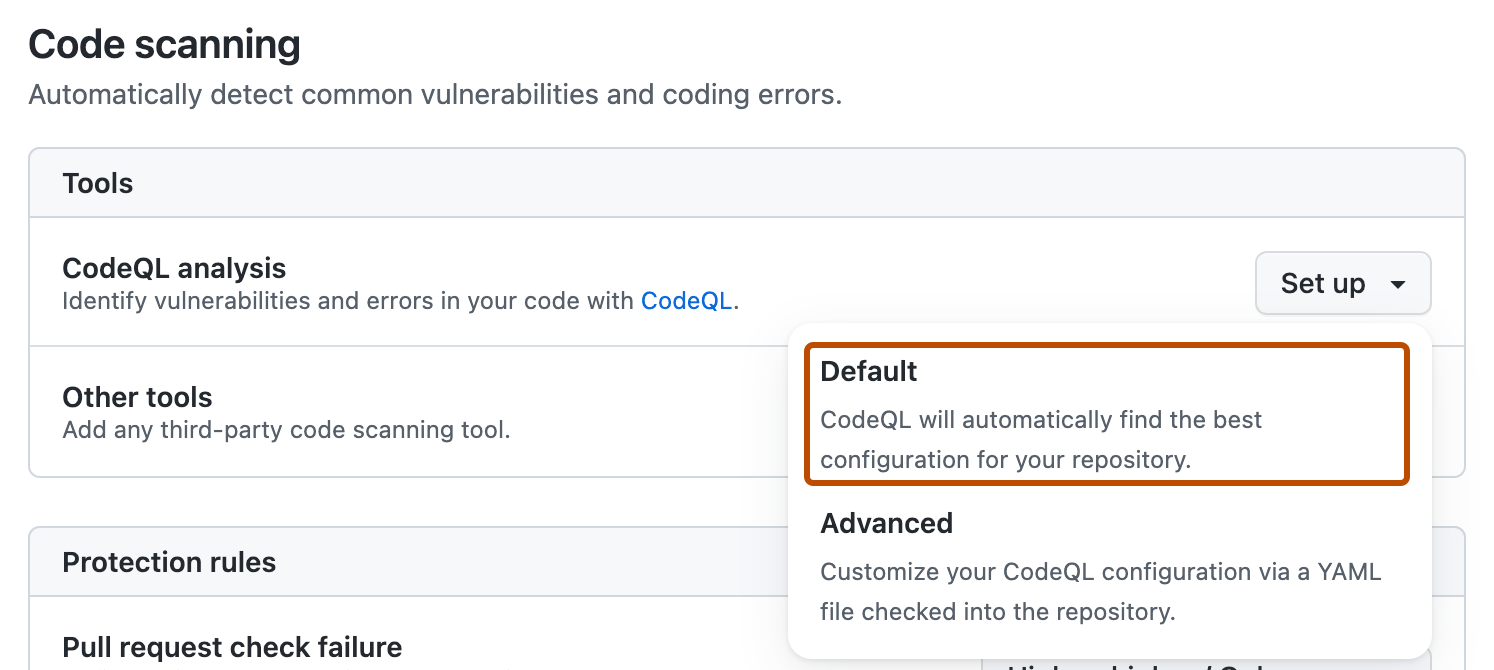
You will then see a "CodeQL default configuration" dialog summarizing the code scanning configuration automatically created by default setup.
-
Optionally, to customize your code scanning setup, click Edit.
- To add or remove a language from the analysis performed by default setup, select or deselect that language in the "Languages" section.
- To specify the CodeQL query suite you would like to use, select your preferred query suite in the "Query suites" section.
-
Review the settings for default setup on your repository, then click Enable CodeQL. This will trigger a workflow that tests the new, automatically generated configuration.
注意
If you are switching to default setup from advanced setup, you will see a warning informing you that default setup will override existing code scanning configurations. This warning means default setup will disable the existing workflow file and block any CodeQL analysis API uploads.
-
Optionally, to view your default setup configuration after enablement, select , then click View CodeQL configuration.


Assigning labels to runners
注意
Code scanning sees assigned runners when default setup is enabled. If a runner is assigned to a repository that is already running default setup, you must disable and re-enable default setup to start using the runner. If you add a runner and want to start using it, you can change the configuration manually without needing to disable and re-enable default setup.
You can also assign self-hosted runners with the default code-scanning label, or you can optionally give them custom labels so that individual repositories can use different runners. For information about assigning labels to self-hosted runners, see 将标签与自托管运行程序结合使用.
Specifying custom labels for self-hosted runners is optional. Unless you have a specific use case, we recommend that you only assign runners with the default code-scanning label. For example, you may want to:
- Assign more powerful self-hosted runners to critical repositories for faster code scanning analysis.
- Run your code scanning analyses on a particular platform (for example, macOS).
- Have granular control over the workload for your GitHub-hosted runners and self-hosted runners.
Once you've assigned custom labels to self-hosted runners, your repositories can use those runners for code scanning default setup. For more information, see Configuring default setup for a repository, earlier in this article.
You can also use security configurations to assign labels to self-hosted runners for code scanning. See 删除自定义安全配置.
Assigning 大型运行器
To assign a 大型运行器, name the runner code-scanning. This will automatically add the code-scanning label to the 大型运行器. An organization can only have one 大型运行器 with the code-scanning label, and that runner will handle all code scanning jobs from repositories within your organization with access to the runner's group. See Configuring larger runners for default setup.
Next steps
After your configuration runs successfully at least once, you can start examining and resolving code scanning alerts. For more information on code scanning alerts, see 关于代码扫描警报 and 评估存储库的代码扫描警报.
After you've configured default setup for code scanning, you can read about evaluating how it's working for you and the next steps you can take to customize it. For more information, see 评估代码扫描的默认设置.
You can find detailed information about your code scanning configuration, including timestamps for each scan and the percentage of files scanned, on the tool status page. For more information, see About the tool status page for code scanning.
When you configure default setup, you may encounter an error. For information on troubleshooting specific errors, see Troubleshooting analysis errors.