Anyone with read permission for a repository can see code scanning annotations on pull requests. For more information, see Triaging code scanning alerts in pull requests.
Viewing the alerts for a repository
You need write permission to view a summary of all the alerts for a repository on the Security tab.
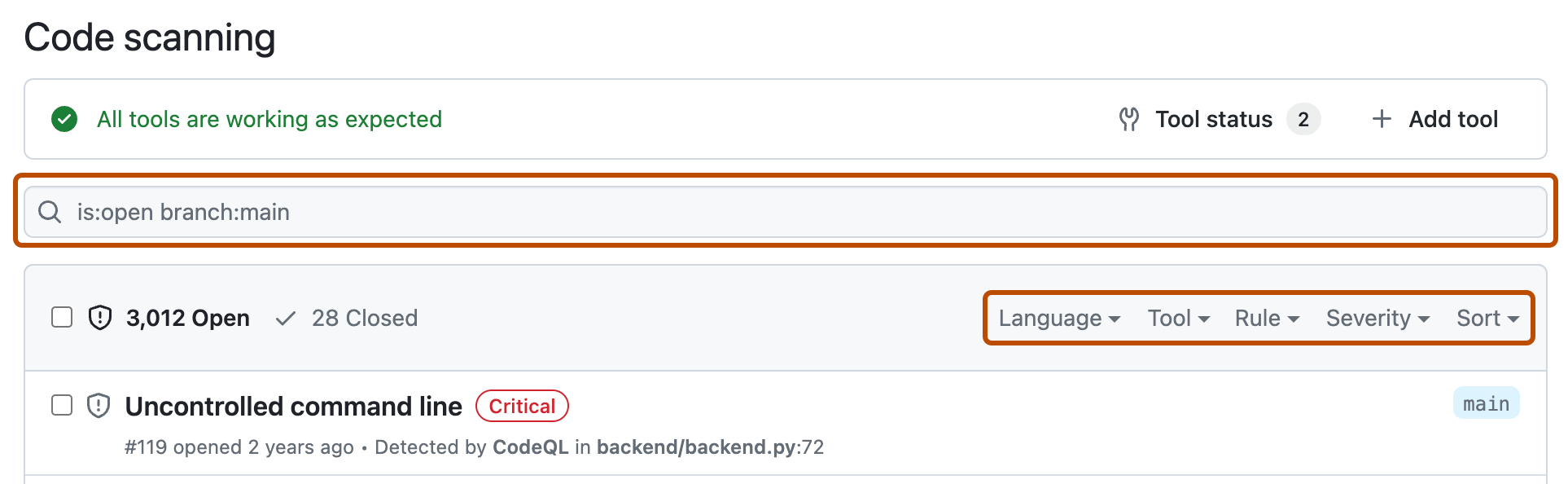
By default, the code scanning alerts page is filtered to show alerts for the default branch of the repository only.
-
GitHub에서 리포지토리의 기본 페이지로 이동합니다.
-
리포지토리 이름에서 Security를 클릭합니다. "Security" 탭이 표시되지 않으면 드롭다운 메뉴를 선택한 다음, Security를 클릭합니다.

-
왼쪽 사이드바에서 Code scanning 을 클릭합니다.
-
Optionally, use the free text search box or the dropdown menus to filter alerts. For example, you can filter by the tool that was used to identify alerts.
-
“”에서 탐색하려는 상세 경고 페이지를 클릭합니다. 경고 페이지에 있는 상태와 세부 정보는 경고가 다른 분기에 있는 경우에도 리포지토리의 기본 분기에 있는 경고의 상태만 반영합니다. 경고 페이지의 오른쪽에 있는 영향받는 분기 섹션에서 기본 분기가 아닌 분기에 대한 경고 상태를 볼 수 있습니다. 경고가 기본 분기에 없는 경우 경고 상태가 "끌어오기 요청 내" 또는 "분기 내"로 표시되고 회색으로 표시됩니다. Development 섹션에서는 경고를 수정할 연결된 분기 및 끌어오기 요청을 보여 줍니다.
-
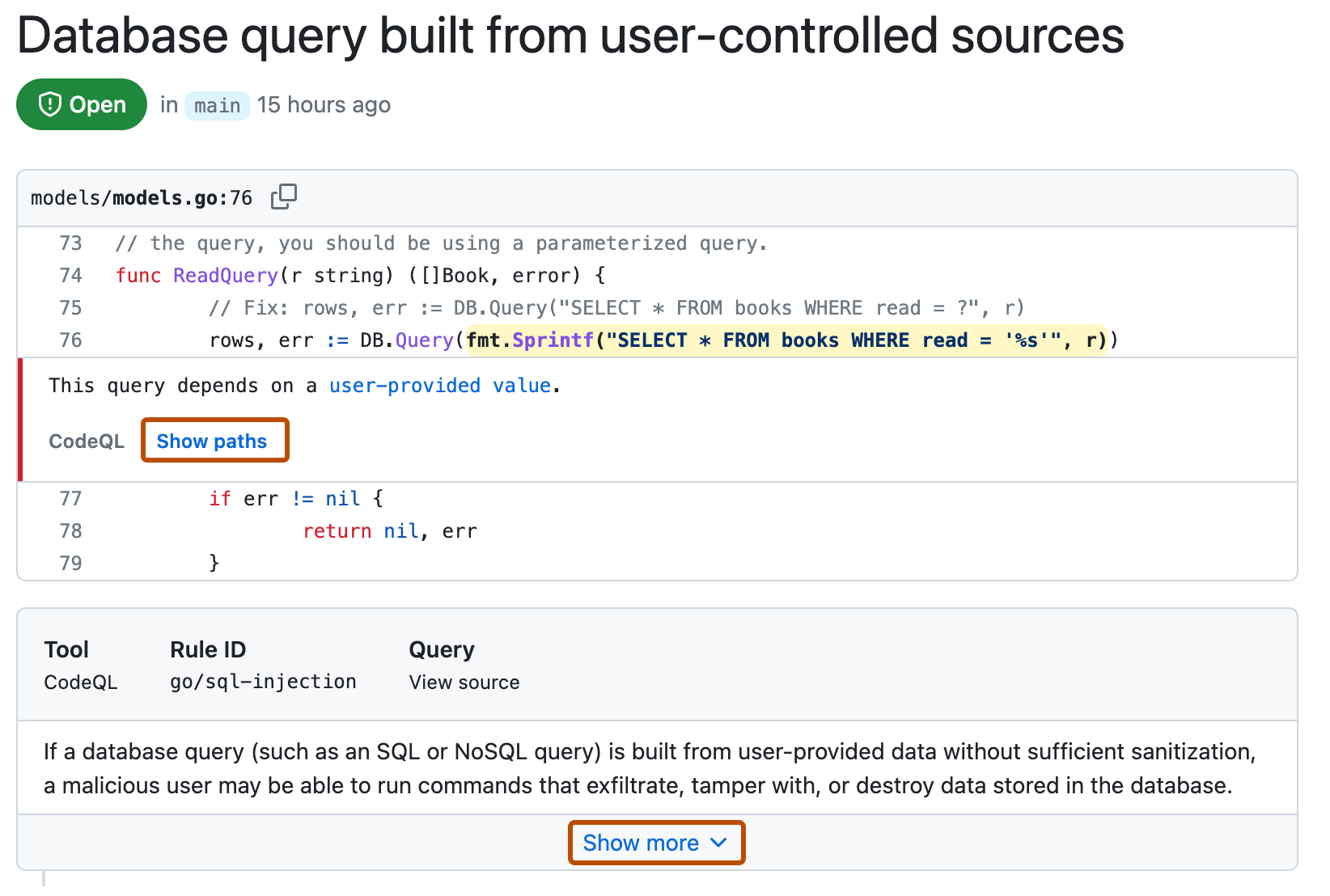
Optionally, if the alert highlights a problem with data flow, click Show paths to display the path from the data source to the sink where it's used.
-
Alerts from CodeQL analysis include a description of the problem. Click Show more for guidance on how to fix your code.
-
선택적으로 오른쪽에 표시된 Assignees 컨트롤을 사용하여 경고를 수정할 사람에게 할당합니다. 경고 할당을 참조하세요.


For more information, see 코드 검사 경고 정보.
참고 항목
You can see information about when code scanning analysis last ran on the tool status page. For more information, see 코드 스캔을 위한 도구 상태 페이지 정보.
Asking GitHub Copilot 채팅 about code scanning alerts
With a GitHub Copilot Enterprise license, you can ask 부조종사 채팅 for help to better understand security alerts, including code scanning alerts, in repositories in your organization. For more information, see GitHub에서 GitHub Copilot에 질문하기.
Viewing metrics for CodeQL pull request alerts for an organization
For code scanning alerts from CodeQL analysis, you can use security overview to see how CodeQL is performing in pull requests in repositories where you have write access across your organization, and to identify repositories where you may need to take action. For more information, see Viewing metrics for pull request alerts.
Filtering code scanning alerts
You can filter the alerts shown in the code scanning alerts view. This is useful if there are many alerts as you can focus on a particular type of alert. There are some predefined filters and a range of keywords that you can use to refine the list of alerts displayed.
When you select a keyword from either a drop-down list, or as you enter a keyword in the search field, only values with results are shown. This makes it easier to avoid setting filters that find no results.

If you enter multiple filters, the view will show alerts matching all these filters. For example, is:closed severity:high branch:main will only display closed high-severity alerts that are present on the main branch. The exception is filters relating to refs (ref, branch and pr): is:open branch:main branch:next will show you open alerts from both the main branch and the next branch.
기본 분기가 아닌 분기에서 경고를 필터링했지만 기본 분기에 동일한 경고가 있는 경우 상태가 기본 분기가 아닌 분기의 상태와 충돌하더라도 지정된 경고의 경고 페이지에는 여전히 기본 분기의 경고 상태만 반영됩니다. 예를 들어 branch-x에 대한 경고 요약의 “열기” 목록에 나타나는 경고는 기본 분기에서 이미 수정된 경우 경고 페이지에 “수정됨” 상태를 표시할 수 있습니다. 경고 페이지 오른쪽에 있는 영향을 받는 분기 섹션에서 필터링한 분기에 대한 경고 상태를 확인할 수 있습니다.
You can prefix the tag filter with - to exclude results with that tag. For example, -tag:style only shows alerts that do not have the style tag.
Restricting results to application code only
You can use the "Only alerts in application code" filter or autofilter:true keyword and value to restrict results to alerts in application code. For more information about the types of code that are automatically labeled as not application code, see 코드 검사 경고 정보.
Searching code scanning alerts
You can search the list of alerts. This is useful if there is a large number of alerts in your repository, or if you don't know the exact name for an alert for example. GitHub performs the free text search across:
- The name of the alert
- The alert details (this also includes the information hidden from view by default in the Show more collapsible section)
| Supported search | Syntax example | Results |
|---|---|---|
| Single word search | injection | Returns all the alerts containing the word injection |
| Multiple word search | sql injection | Returns all the alerts containing sql or injection |
| Exact match search (use double quotes) | "sql injection" | Returns all the alerts containing the exact phrase sql injection |
| OR search | sql OR injection | Returns all the alerts containing sql or injection |
| AND search | sql AND injection | Returns all the alerts containing both words sql and injection |
팁
- The multiple word search is equivalent to an OR search.
- The AND search will return results where the search terms are found anywhere, in any order in the alert name or details.
- GitHub에서 리포지토리의 기본 페이지로 이동합니다.
- 리포지토리 이름에서 Security를 클릭합니다. "Security" 탭이 표시되지 않으면 드롭다운 메뉴를 선택한 다음, Security를 클릭합니다.
- 왼쪽 사이드바에서 Code scanning 을 클릭합니다.
- To the right of the Filters drop-down menus, type the keywords to search for in the free text search box.
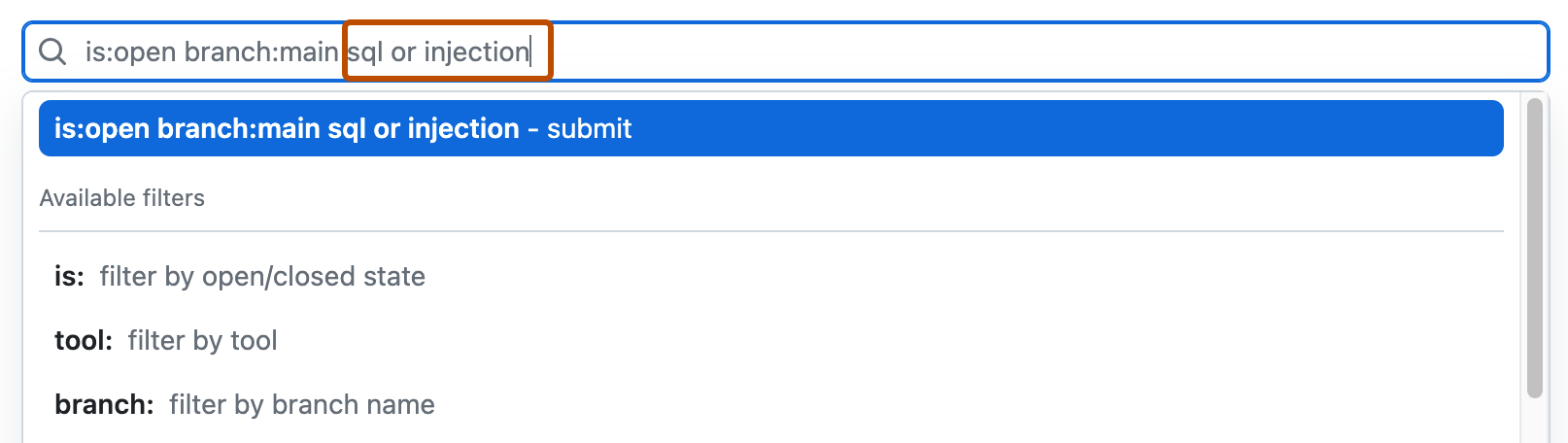
- Press return. The alert listing will contain the open code scanning alerts matching your search criteria.

Auditing responses to code scanning alerts
GitHub 도구를 사용하여 code scanning 경고에 대한 응답으로 수행된 작업을 감사할 수 있습니다. 자세한 내용은 보안 경고 감사을(를) 참조하세요.