About your code scanning configuration
You can use a variety of tools to configure code scanning in your repository. For more information, see 코드 스캔을 위한 기본 설정 구성 and 코드 스캔을 위한 고급 설정 구성.
The log and diagnostic information available to you depends on the method you use for code scanning in your repository. You can check the type of code scanning you're using in the Security tab of your repository, by using the Tool drop-down menu in the alert list. For more information, see Assessing code scanning alerts for your repository.
About analysis and diagnostic information
You can see analysis and diagnostic information for code scanning run using CodeQL analysis on GitHub.
Analysis information is shown for the most recent analysis in a header at the top of the list of alerts. For more information, see Assessing code scanning alerts for your repository.
Diagnostic information is displayed in the Action workflow logs and consists of summary metrics and extractor diagnostics. For information about accessing code scanning logs on GitHub, see Viewing the logging output from code scanning below.
If you're using the CodeQL CLI outside GitHub, you'll see diagnostic information in the output generated during database analysis. This information is also included in the SARIF results file you upload to GitHub with the code scanning results.
For information about the CodeQL CLI, see CodeQL 쿼리를 사용하여 코드 분석.
About summary metrics
요약 메트릭에는 다음이 포함됩니다.
- CodeQL 데이터베이스를 만들고 추출하기 전의 코드베이스의 코드 줄(기준으로 사용)
- 코드에서 추출된 CodeQL 데이터베이스(외부 라이브러리 및 자동 생성된 파일 포함)의 코드 줄
- CodeQL 데이터베이스(자동 생성된 파일 및 외부 라이브러리 제외)의 코드 줄
About CodeQL source code extraction diagnostics
추출기 진단은 분석 중에 확인된 파일만을 다룹니다. 메트릭은 다음과 같습니다.
- 성공적으로 분석된 파일 수
- 데이터베이스를 만드는 동안 추출기 오류가 발생한 파일 수
- 데이터베이스를 만드는 동안 추출기 경고가 발생한 파일 수
You can see more detailed information about CodeQL extractor errors and warnings that occurred during database creation by enabling debug logging. For more information, see 로그가 충분히 자세히 설명되지 않음.
Viewing the logging output from code scanning
This section applies to code scanning run using GitHub Actions (CodeQL or third-party).
After configuring code scanning for your repository, you can watch the output of the actions as they run.
-
리포지토리 이름에서 작업을 클릭합니다.

You'll see a list that includes an entry for running the code scanning workflow. The text of the entry is the title you gave your commit message.
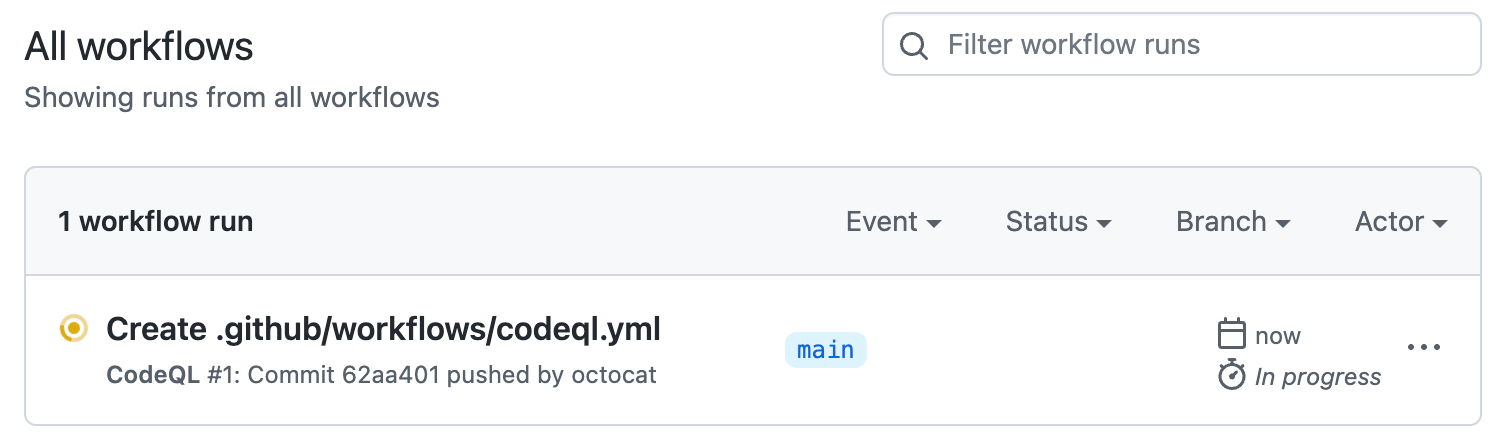
-
Click the entry for the code scanning workflow.
참고 항목
If you are looking for the CodeQL workflow run triggered by enabling default setup, the text of the entry is "CodeQL."
-
Click the job name on the left. For example, Analyze (LANGUAGE).
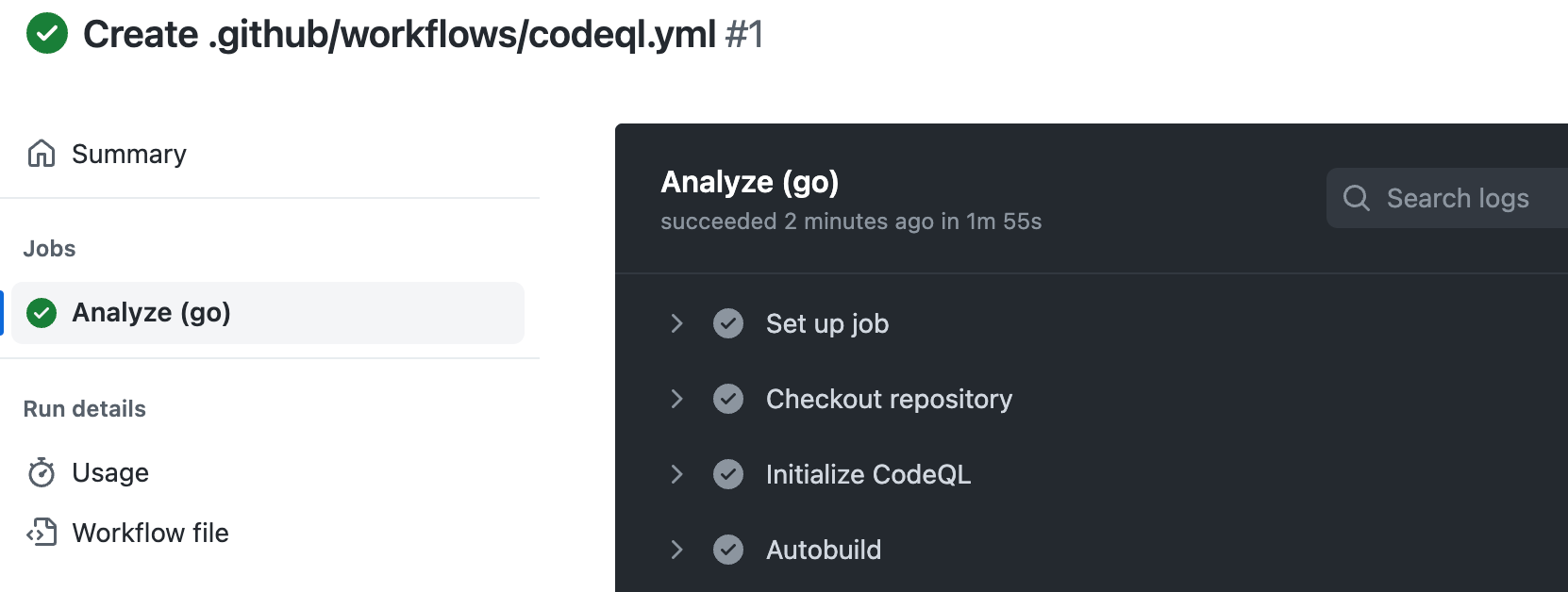
-
Review the logging output from the actions in this workflow as they run.
-
Optionally, to see more detail about the commit that triggered the workflow run, click the short commit hash. The short commit hash is 7 lowercase characters immediately following the commit author's username.
-
Once all jobs are complete, you can view the details of any code scanning alerts that were identified. For more information, see Assessing code scanning alerts for your repository.


Determining whether code scanning default setup used any private registries
Code scanning default setup includes a Setup proxy or registries step. When you are looking at a log file for default setup, you can expand this step. If the step includes:
-
Using registries_credentials input.At least one private registry is configured for the organization. -
Credentials loaded for the following registries:- No further output in the step. Access was unsuccessful.
Type: nuget_feed;Default set up accessed a private Nuget feed.Type: maven_repository;Default set up accessed a private Maven repository.
For more information, see 프라이빗 레지스트리에 대한 보안 기능 액세스 권한 부여.